Presentations
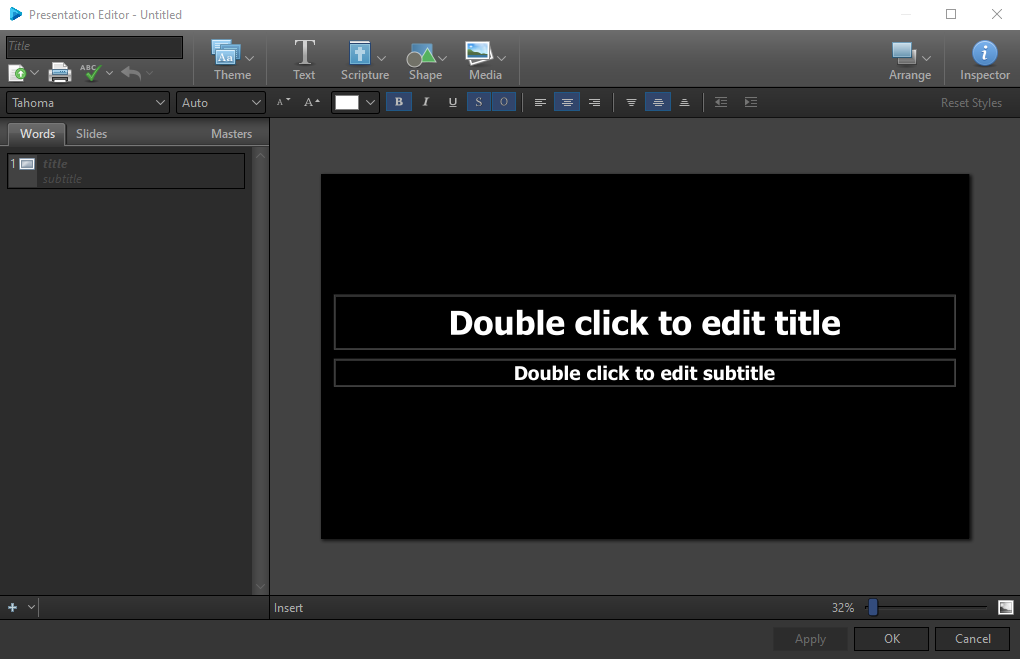
EasyWorship's robust Presentation Editor is a full slide designer. Choose from different types of slides, control transitions, create slide loops, use shapes, and create/apply custom themes.
When you edit a presentation in a Schedule, you can choose to make changes that affect the presentation for that schedule only, or you can make permanent changes to a presentation in the Resource Area under the Presentations tab.
 a
a
Right-Click Features
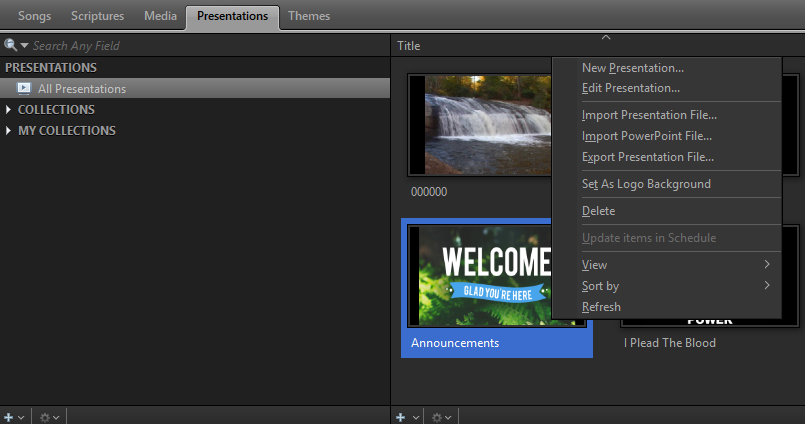
When right-clicking a thumbnail in the Presentations tab in the Resource Library, you have the following options.
|
New Presentation... |
This will open a new Presentation Editor. |
|
Edit Presentation... |
This will open the selected Presentation in the Presentation Editor. |
|
Import Presentation File... |
Opens a file selection window to choose an existing presentation to import. (the file extension will be .ewpx) |
|
Import PowerPoint File... |
Opens a file selection window to choose an existing PowerPoint file to import. |
|
Export Presentation File... |
Allows you to export the presentation for use on another computer. (will export as a .ewpx file extension) |
|
Set as Logo Background |
This sets the presentation as the default background logo. Logos can have multiples slides with animation and timing. If you select a presentation as your logo, that means that anytime you turn on the Logo button on the main toolbar, that selected presentation will display on the live output. |
|
Delete |
Deletes the presentation from the Resource Library. |
|
Update Items In Schedule |
If you make changes to a presentation in the database (or Resource Library) and you have that same presentation in the schedule, you can choose to update the item in the schedule with the same changes you made in the database. |
|
View |
Allows you to change icon size for a custom thumbnail view. |
|
Sort by |
The same as in Windows. |
|
Refresh |
This will refresh the thumbnail for the selected item(s). |