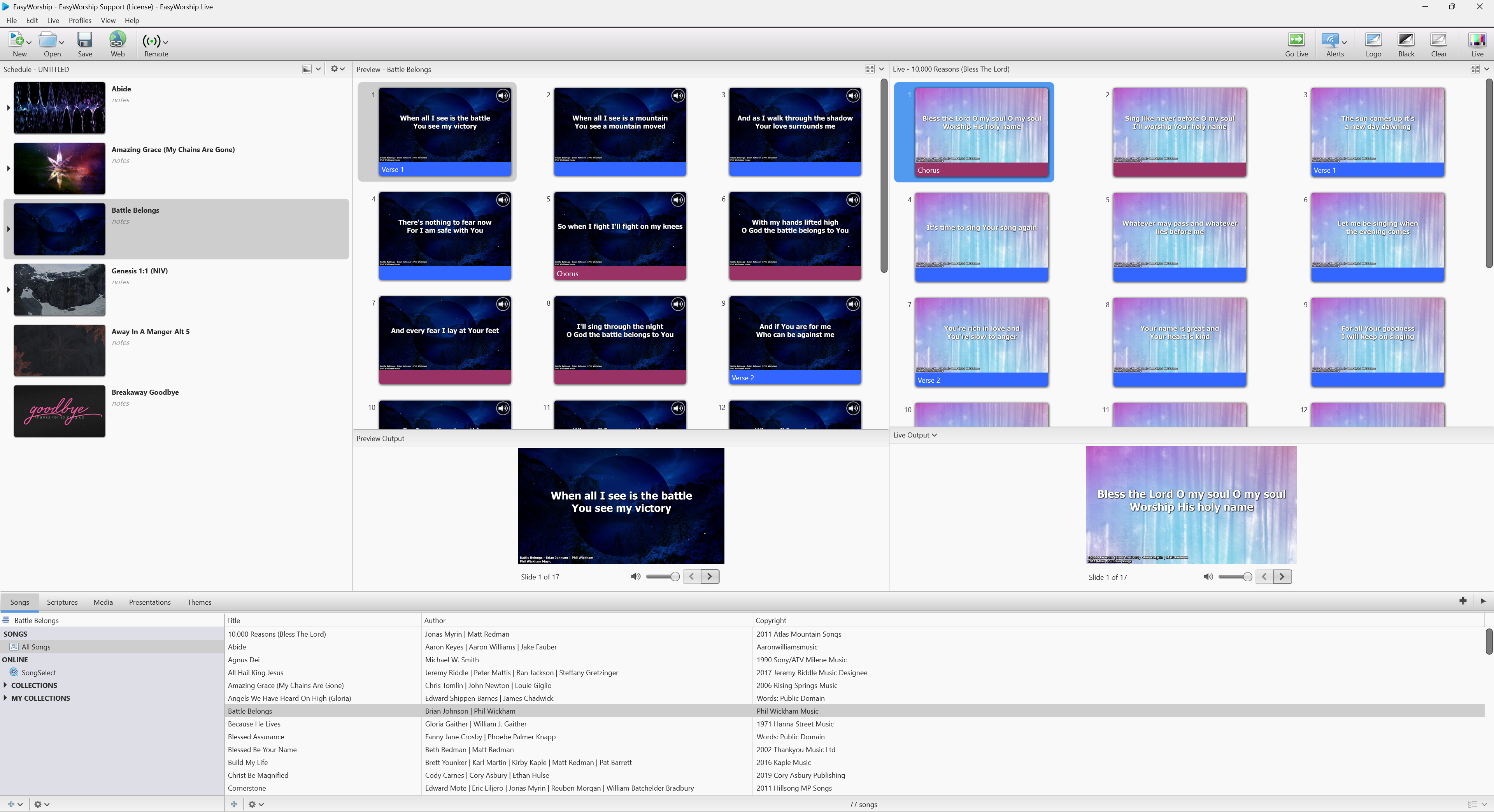
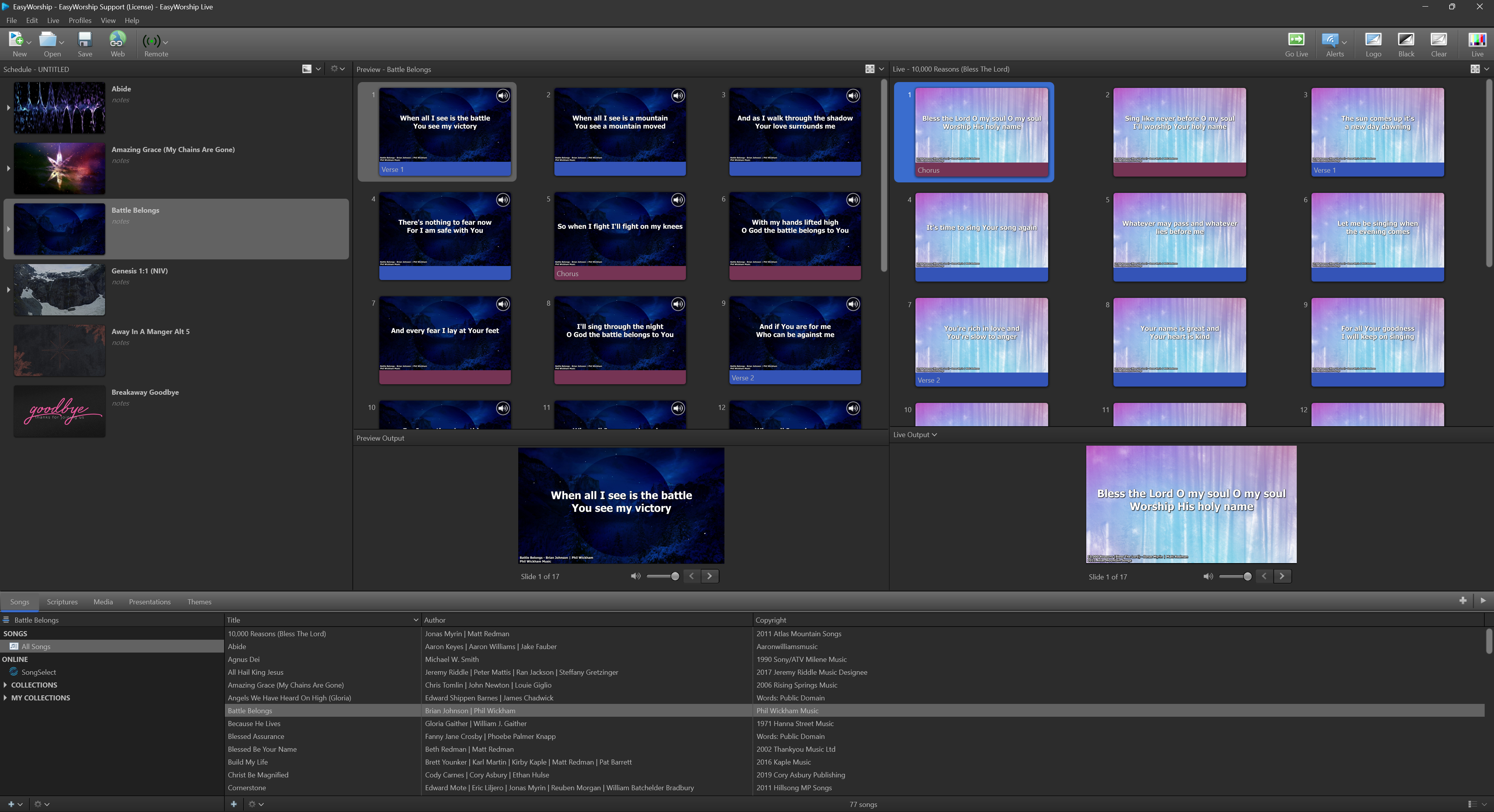
View Menu
|
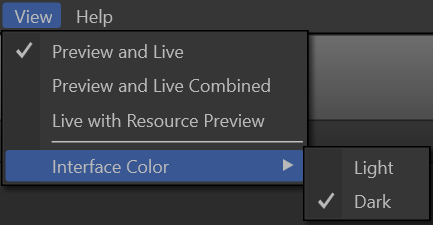
Preview and Live (Default) |
This view divides the top section into 3 separate parts - Schedule, Preview, and Live. To compose a theme onto your slides, presentations, or songs, select the desired song in the Songs tab, then select the Themes tab. Drag the desired theme into the Preview Output to change the theme of the entire song, or onto a single slide to change the theme of that slide only. |
|
Preview and Live Combined |
This view allows you to preview and go live in the same window. When you select a resource, it will show up in the Live Area, but does not go live until you select the item in the Live window or until you click Go Live. To compose in this view, select the desired song in the Songs tab, then select the Themes tab. Select a theme to use with the selected song. Drag the theme to the slides in the Live Area. To view all your scheduled slides in a contiguous view (linear), click the Icon button in the top right corner of the Schedule window and select Contiguous. Use the right-arrow button on the keyboard to advance through the entire schedule. |
|
Live with Resource Preview |
This view shows a preview in the right side of the Resource Area, as well as in the Schedule. The live output is shown in the Live Area. You can now compose quickly using this view. Select the desired song in the Songs tab, then select the Themes tab. Select a theme to use with the selected song. To go live, click the Play button above the compose section or click Go Live. To add it to the Schedule, click thePlus button. |
|
Interface Color |
Light Interface - This is the original view with a white background.
Dark Interface - This is the view with a dark or gray background.
|