Song, Scripture, Presentation and Theme Collections
Collections help you keep your resources organized in EasyWorship. Collections are available in all of the tabs in the Resource Area. Resources listed under Collections are available to all EasyWorship users sharing a network database. The resources under My Collections are only available on that computer.
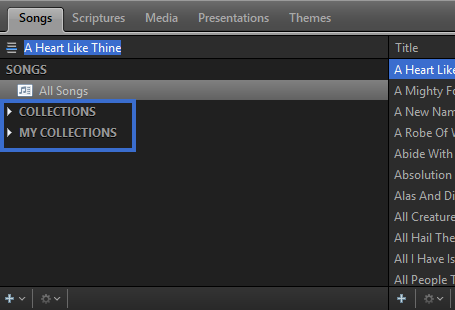
- To start using Collections, select the desired tab (Songs, Scriptures, Media, Presentations, or Themes) in the Resource Area and click the Add icon in the bottom left corner.
The Collections menu shown here will appear.
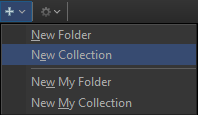
- Folders help organize your Collections. For example, you can have a Holiday folder with separate Collection for various holidays. To edit the Collection, double-click the desired Collection or right-click the Collection and select Edit.... This will open the Edit Song / Scripture / Presentation / Theme Collection window.
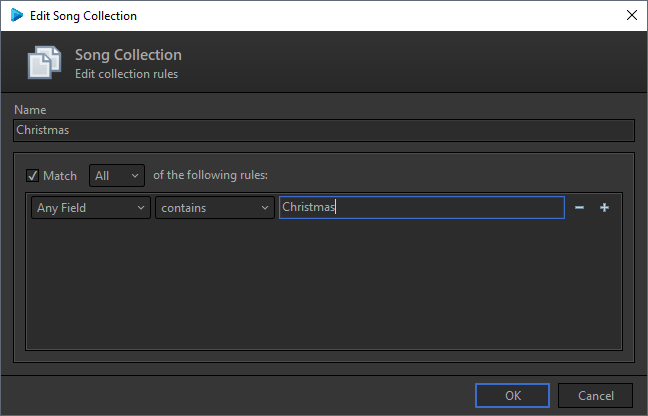
- In this window, you can edit and name your Collection and filter your Collection contents. Check the box next to Match and use the drop-down to choose All or Any of the following rules.
- Using the drop-down menus, select the desired options and enter the text by which to filter your results. You can filter by Title, Author, Copyright, Administrator, Words, or Any Field. Click the Add
 icon to add additional filters to this Collection.
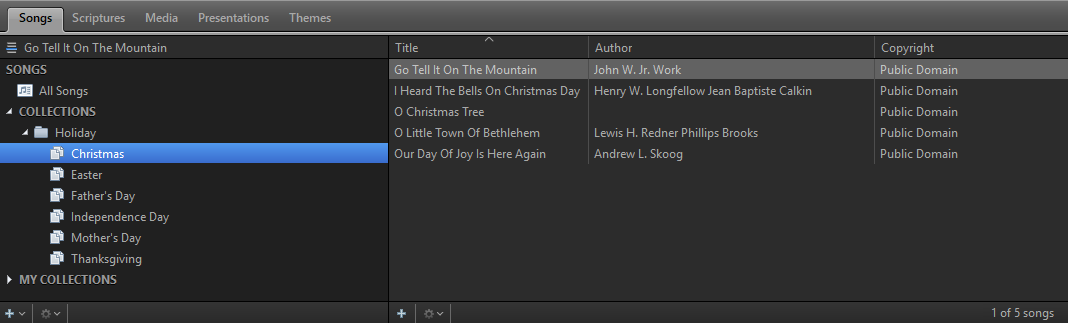
 - Click OK to filter the songs in the Collection and return to the main window. You will see the filtered results now contained in that Collection.
Delete an item from a Collection:
- Right click the item you want removed.
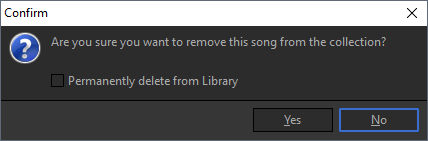
- From the pop out menu, select Remove. The Confirm window will open.
- If you want to also permanently delete the item from the EasyWorship library, check the box to permanently delete.
- Click Yes.
- OR select the item you want removed and press Delete on your keyboard.
NOTE Adding items to a Collection does not copy them to a folder. If you delete the source, it will be deleted permanently and will no longer be in your EasyWorship Library or Collection. You cannot undo this action.
Delete a Folder
- Right click the Folder you want removed.
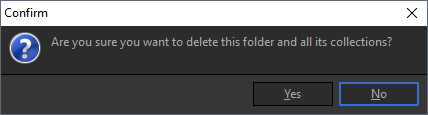
- From the pop out menu, select Delete. The Confirm window will open.
- If you want to permanently delete the folder and all its collections, Click Yes.
- OR, select the folder you want deleted and press Delete on the keyboard.
Delete a Collection
- Right click the Collection you want removed.
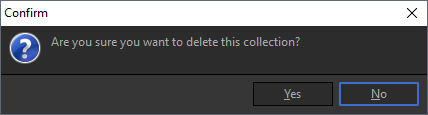
- From the pop out menu, select Delete. The Confirm window will open.
- If you want to permanently delete the collection, Click Yes.
- OR, select the collection you want deleted and press Delete on the keyboard.