Media Collections
Using Collections in Media will help keep your own images and videos organized. In the Media tab, create a new Collection. You can then drag-and-drop media from the Images and Videos Libraries to your new Collection.

Also, if you already have your images and videos organized into folders, you can retain that structure within EasyWorship using the Collections filter.
- To find and manage your media folders, click Profiles > Profiles Manager.... The Profile Editor window will appear.
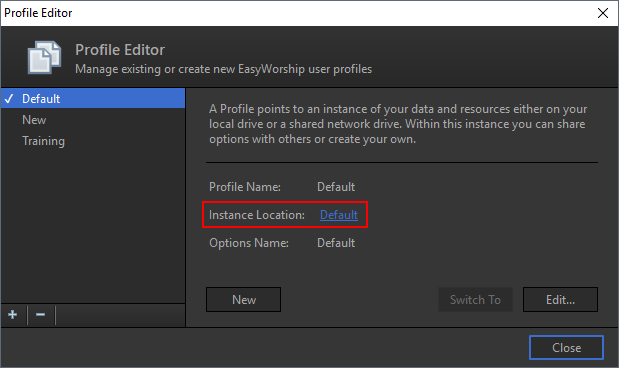
- Click the link next to the Instance Location. This will open your EasyWorship Profile folder.
- Double-click Resources and select the folder for the type of media you want to organize. Keep this window open while editing your Collection, so that you can see the available directories.
- In EasyWorship, close the Profile Editor and click the Add icon in the bottom left corner to create a New Collection.
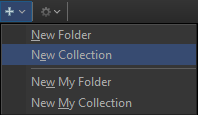
- Right-click the newly created Collection and select Edit.... The Edit Media Collection window will appear.
- Enter a name for your Collection, needs to be the same as the directory you'll be pulling media from.
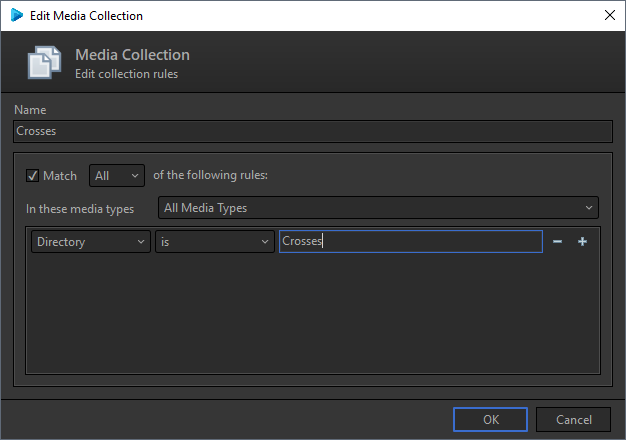
- Check the box next to Match and select All. Change the media type to the type of media you're filtering. Click the Title drop-down and select Directory. Click the Contains drop-down and select is. Enter the directory name. Click OK to populate that Collection with the media from the specified directory.