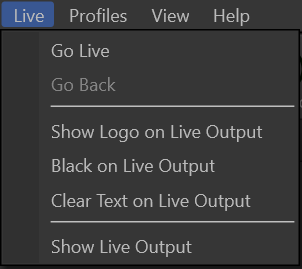
Live Menu
|
Go Live |
Allows you to send the current item in the preview screen or Schedule to the live output. |
|
Go Back |
Allows you to jump in and out of a PowerPoint presentation without losing your place. |
|
Show Logo on Live Output |
This is a toggle that sends the selected Logo image to the live output. Click the menu item again to toggle the logo off. |
|
Black on Live Output |
This is a toggle that sends a solid black screen to the live output. Click the menu item again to toggle the black screen off. |
|
Clear Text on Live Output |
This is a toggle that clears all text and foreground elements from the live output. Click the menu item again to toggle the text and foreground elements back on. |
|
Show Live Output |
This is a toggle button that allows you to enable or disable the video output from EasyWorship to the video screen. When the Live text is blinking, the output from EasyWorship is "live" on the audience screen. When it is not blinking, the audience will see the Windows wallpaper or another program on the audience screen. |