Inspector Animate
Animate allows you to set transitions from slide to slide and set specific timings for your slides.
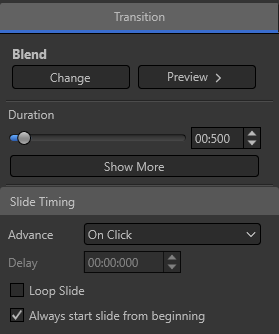
Transition
|
Blend |
Click Change to select a new transition for your slide.
Click Preview to see what your transition looks like on the slide. |
|
Duration |
Set the duration for your transition. The default transition time is set to 0.500 seconds. |
|
Easing |
Click Show More to see Easing. Adjust the slider to Start or End if you want to change how the transition is affected between slides. |
|
Lock Background |
If you transition from one slide to another with the same background and have this box checked it will only transition the foreground elements, like the text box, and leave the background static. If you uncheck this box, the background will transition with all foreground elements. |
Slide Timing
|
Advance |
Select how you want the slide to advance. On Click: The slide will only advance manually. Automatic: The slide will advance automatically when the duration of the slide ends. For example, if there is a video/audio element on the slide, it will play the video/audio and then automatically advance to the next slide when it's finished playing. If there is no duration on the slide, if it's just an image, it will automatically advance right away. Fixed Duration: If you want a slide to stay live for a certain amount of time, choose this and enter in the delay time. For example, if you want the slide displayed for 5 seconds, choose Fixed Duration and set the Delay time for 00:05:000. |
|
Delay |
Set the delay time for your Fixed Duration timing or for your Automatic delay time. |
|
Loop Slide |
If you want this slide only to Loop automatically, you can check Loop Slide. Keep in mind, this will be the only slide that will display since it will be looping it over and over. |
|
Always start slide from beginning |
Checking this box will ensure that the video/audio element will always start at the beginning, even if you play some of it in the preview window. Un-checking it will allow you to preview part of it in the preview and then go live. It will then start where you left off in the preview. |