Foldback General
To access the Options menu in EasyWorship, click Edit > Options.... In the bottom left corner of the Options window, there is a check-box next to Preview Output. Use this option to view changes on the output screen as you make them.
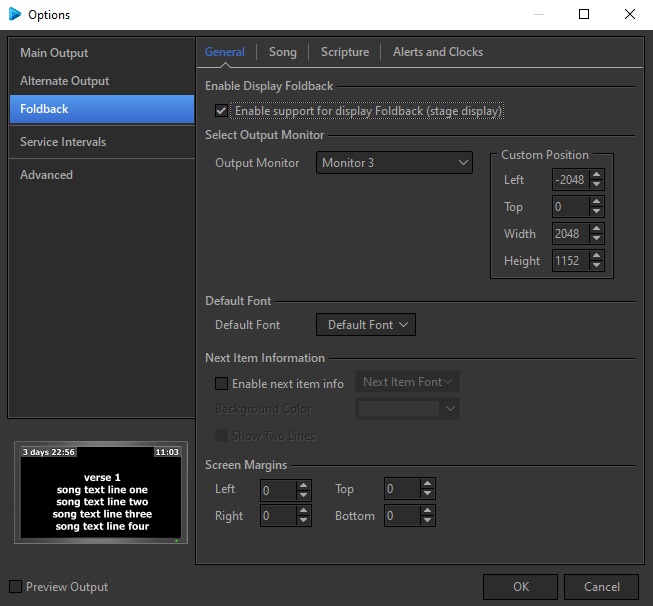
Enable Display Foldback
|
Enable support for display Foldback (stage display) |
Checking this box allows EasyWorship to take advantage of a third video output to display content for stage monitors. |
Select Output Monitor
|
Output Monitor |
This drop-down allows you to set the screen or location to which the EasyWorship foldback output content will be sent. |
|
Custom Position |
These fields show you where EasyWorship is sending its foldback content to by pixel location. If custom position is selected from the Output Monitor drop down, this is where you will enter the location you want EAsyWorship to send its output to. |
Default Font
|
Default Font |
This menu allows you to set the default appearance of the text. Refer to Default Font for information on the options in this window. |
Next Item Information
|
Enable next item info |
Checking this box enables Next Item Information. Next item info can show up either 1) as the first line of the next slide, or 2) as the title of the next item in the schedule. |
|
Next Item Font |
This menu allows you to set the appearance of the text. Refer to Default Font for information on the options in this window. |
|
Background Color |
Sets the background color for the next item. |
|
Show Two Lines |
Checking this box will show the first two lines of the next slide instead of only the first line of the next slide. |
Screen Margins
|
Screen Margins |
These fields allow you to fine-tune the Left, Right, Top, and Bottom screen margins so EasyWorship's content displays properly on the Foldback screen. (Margins normally do not need to be set.) |