foldback Alerts and Clocks
To access the Options menu in EasyWorship, click Edit > Options.... In the bottom left corner of the Options window, there is a check-box next to Preview Output. Use this option to view changes on the output screen as you make them.
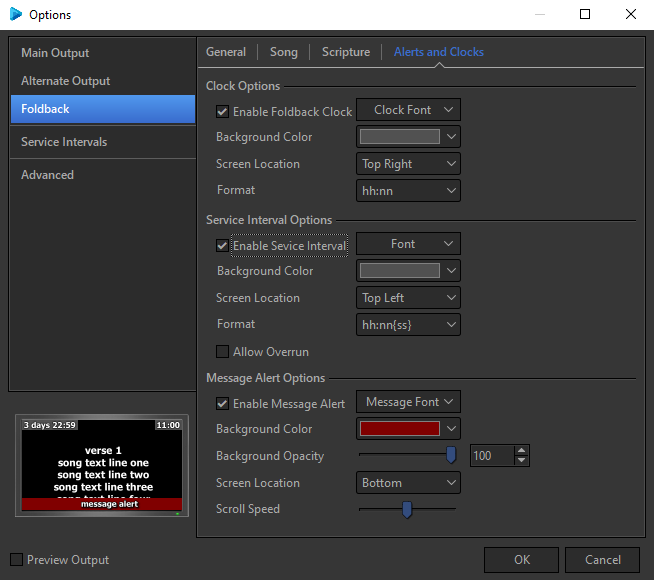
Clock Options
|
Enable Foldback Clock |
Checking this box enables the Clock Options. |
|
Clock Font |
Refer to Default Font for information on the options in the Clock Font window. |
|
Background Color |
Sets the background color of the clock. |
|
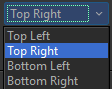
Screen Location |
Sets the position of the clock on the screen.
|
|
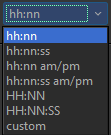
Format |
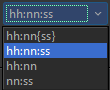
Sets the desired format of the time on the clock.
|

Service Interval Options
Service Intervals are start and stop times you can set for your services. This can be used on the foldback screen to show when the service is starting and when it is scheduled to end. See Service Intervals.
|
Enable Service Interval |
Checking this box enables service intervals. |
|
Font |
Refer to Default Font for information on the options in the Font window. |
|
Background Color |
Sets the background color of the clock. |
|
Screen Location |
Sets the position of the service interval on the screen.
|
|
Format |
Sets the desired format of the time on the service interval.
|
|
Allow Overrun |
Check this box to have the countdown clock start counting with a negative time to show that you have overrun the start or stop time. |
NOTE The stop interval time will not begin counting down immediately after the start time is finished. The point at which the stop time begins counting down is calculated depending on the length of time between the start and stop interval times and will begin with plenty of time remaining before the service stop interval time.
Message Alert Options
|
Enable Message Alert |
Check to allow message alerts. |
|
Message Font |
Refer to Default Font for information on the options in the Message Font window. |
|
Background Color |
Sets the background color of the alert. |
|
Background Opacity |
Sets the background opacity of the alert. |
|
Screen Location |
Allows you to set the position of the alert on the screen.
|
|
Scroll Speed |
Sets the speed at which the messages are scrolled through. |