Toolbar

|
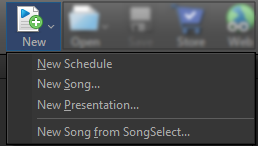
New |
Displays a drop-down menu that allows you to create a new Schedule, Song, Presentation, or import a new song from SongSelect.
|
|
Open |
Displays a drop-down menu with the option to browse for a saved schedule, or choose from the most recently-saved schedules.
|
|
Save |
Saves the active schedule. |
|
Store |
Opens the EasyWorship media store. |
|
Web |
Displays a web browser in place of the Preview Area and Live Area. |
|
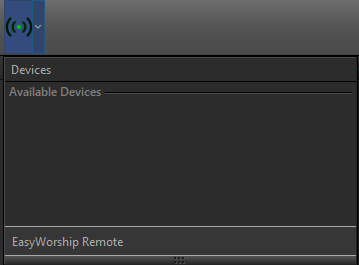
Remote Control |
This is a toggle button that allows you to turn on the remote capability and connect to the EasyWorship remote app on a mobile device. Click the drop down menu to select and pair your device.
|
|
Go Live |
Allows you to send the current item in the preview screen to the live screen. |
|
Alerts |
Click Alerts to add an alert to your live output. You can set the appearance of the alert in the Alerts options, located in Edit > Options... > Alerts. For more information on the available settings, SEE Alert Options |
|
Logo |
This is a toggle button that sends the selected Logo image to the live output. Click the button again to toggle the logo off. |
|
Black |
This is a toggle button that sends a solid black screen to the live output. Click the button again to toggle the black screen off. |
|
Clear |
This is a toggle button that clears all text and foreground elements from the live output. Click the button again to toggle the text and foreground elements back on. |
|
Live |
This is a toggle button that allows you to enable or disable the video output from EasyWorship to the live output screen. When the Live text is blinking, the output from EasyWorship is "live" on the audience screen. When it is not blinking, the audience will see the Windows wallpaper or another program on the audience screen. |