Tokens
A token is essentially a variable that you can insert into an alert. To create a new token, click Alerts>Message Alerts>Create/Edit Alert Template. Add or Edit an alert and click the Tokens drop-down and select Add. The Add/Edit Token window will appear.
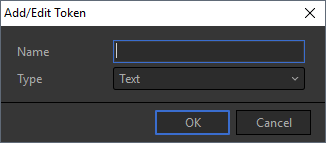
- Enter a name for the new token.
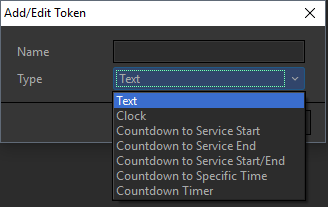
- Select the type of token from the Type drop-down. Depending on the type chosen, other fields will appear in the window as shown in the table below. For the "countdown" tokens, an Allow Overrun check box will appear. Check this box to have the countdown clock start counting with a negative time to show that you have overrun the start time.
|
Text |
No additional fields. Enter the text to display in the alert. |
|
Clock |
This inserts a clock using the time your computer is set to, into the alert, using the format chosen in the Format field. Options are (each example shows the format for 11:30 PM): hh:nn - 11:30 hh:nn:ss - 11:30:01 hh:nn am/pm - 11:30 pm hh:nn:ss am/pm - 11:30:01 pm HH:NN - 23:30 HH:NN:SS - 23:30:01 custom - If custom is chosen, a Custom Format field appears. Enter the desired format. |
|
Countdown to Service Start |
This will insert a countdown to the start of service, based on the service intervals entered in the Service Intervals tab of the Options window. An additional field, Format, appears with the following options: nn:ss hh:nn hh:nn:ss hh:nn{ss} |
|
Countdown to Service End |
This will insert a countdown to the end of service, based on the service intervals entered in the Service Intervals tab of the Options window. The countdown will start at the greater of 1/3 service interval length or 15 minutes. An additional field, Format, appears with the following options: nn:ss hh:nn hh:nn:ss hh:nn{ss} |
|
Countdown to Service Start/End |
This will insert a countdown to the start or end of service, whichever is applicable, based on the service intervals entered in the Service Intervals tab of the Options window. The countdown to service end will start at the greater of 1/3 service interval length or 15 minutes. An additional field, Format, appears with the following options: nn:ss hh:nn hh:nn:ss hh:nn{ss} |
|
Countdown to Specific Time |
This will insert a countdown to the time entered in the additional field (Time) that appears when this option is chosen. An additional field, Format, appears with the following options: nn:ss hh:nn hh:nn:ss hh:nn{ss} |
|
Countdown Timer |
This will insert a countdown for the amount of time entered into the additional field (Time) that appears when this option is chosen. An additional field, Format, appears with the following options: nn:ss hh:nn hh:nn:ss hh:nn{ss} |
SEE Service Intervals