Themes
Themes are design templates that can be applied to songs, scriptures, and presentations. Once you've taken the time to design a Theme by customizing your text format, background, and layout just the way you want, it can then be applied to any song, scripture, or presentation in your Schedule Area in seconds. Just save your new Song Theme, Scripture Theme or Presentation Theme to your Themes Library, then drag-and-drop it on top of its respective item in your Schedule. You can also select and apply it using the Theme button in any one of the editors or set a default Song, Scripture or Presentation theme to always be used.

Right-Click Features
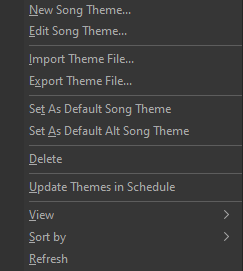
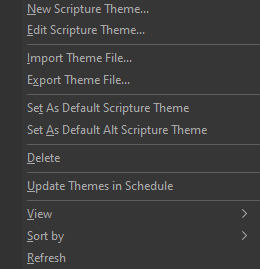
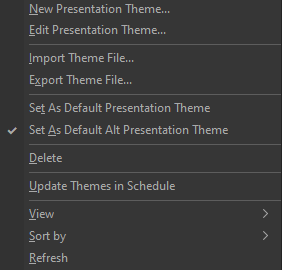
When right-clicking a thumbnail in the Themes tab in the Resource Library, you have the following options.
|
New <Song, Scripture, Presentation> Theme... |
This will open a new Theme Editor. |
|
Edit <Song, Scripture, Presentation> Theme... |
This will open the selected theme in the Theme Editor. NOTE If you select a Powerpoint file, this option will open the Powerpoint application on your computer for editing the presentation. |
|
Import Theme File... |
Opens a file selection window to choose an existing theme to import. |
|
Export Theme File... |
Allows you to export the theme for use on another computer. |
|
Set as Default <Song, Scripture, Presentation> Theme |
This sets the selected theme as the default theme for the Song, Scripture, or Presentation. |
|
Set as Default Alt <Song, Scripture, Presentation> Theme |
This sets the selected theme as the default Alternate Output theme for the Song, Scripture, or Presentation. |
|
Delete |
Deletes the theme from the Resource Library. |
|
Update Themes in Schedule |
Update any Scheduled items with new changes you've made in your theme in Resources. |
|
View |
Allows you to change icon size for a custom thumbnail view. |
|
Sort by |
The same as in Windows. |
|
Refresh |
This will refresh the thumbnail for the selected item. |