Theme Editor
The Theme Editor is similar to the Song and Presentation Editors in that it has slides, an Inspector, and it allows you to add media and text boxes to slides. However, unlike the Song and Presentation Editors, the Theme Editor does not allow you to add or change the default text on the slides. The Theme Editor is designed for making overall formatting and placement changes. You can, however, add other elements like Text boxes, Media and Scripture to the slide.
Toolbar
|
|
|
|
Title |
Enter a name for the song, scripture, theme, or presentation in this field. |
|
Theme |
Use the drop-down to select a theme. (This option is grayed out in the Theme Editor.) |
|
Text |
Adds a text box to display on each slide. |
|
Scripture |
Click the scripture button to select scripture text and press enter or drag it to add it to the theme. |
|
Media |
Click the media button to select videos, images, feeds, DVD clips, or audio and press enter or drag it to add it to the theme. |
|
Arrange |
Clicking this button allows you to set the layer at which the selected element resides. You have the option of Move Up, Move Down, Bring to Front, Send to Back. |
|
Inspector |
Opens the Inspector window. This allows you to make more detailed formatting changes to different elements. |
|
Import |
Allows you to import a text document into your song, presentation, or theme. |
|
|
Allows you to print the song, schedule, theme, or presentation. |
|
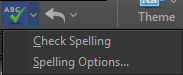
Spell Check |
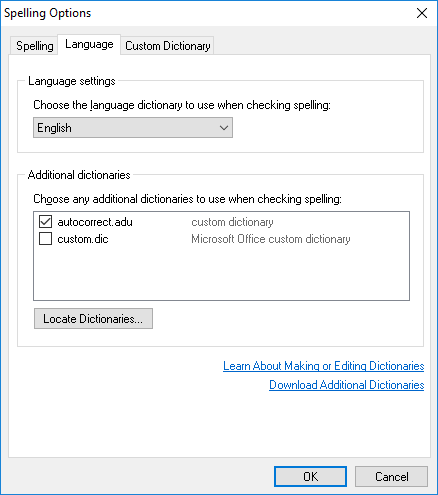
Checks spelling and allows you to make spelling changes or add words to the dictionary. To add a language to the spell check dictionary, click the Spell Check button and select Spelling Options....
|
|
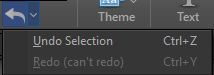
Undo / Redo |
Click to undo previous functions. Click the drop-down arrow to redo functions that you clicked to undo. |
|
Font Selector |
Click the font selector to select the font formatting you wish to use on selected text. |
|
Auto Sizing |
Allows you to choose between setting an exact font size or automatically sizing the font. |
|
Font Size |
Changes the font size of the text to the point size selected. |
|
Font Color |
Allows you to change the color of selected text by selecting from the color palette provided. |
|
Text Style Options |
Bold, Italics, Underline, Shadow, Outline |
|
Horizontal Alignment Options |
Left Align, Center Align, Right Align |
|
Vertical Alignment Options |
Top Align, Middle Align, Bottom Align |
|
Intent / Outdent |
Increase or decrease the indent level of the paragraph. |
|
Reset Styles |
Resets formatting to default settings. |

Customizing the Theme
You can create a text box, add Scripture or Media, and use the Arrange and Inspector buttons on the toolbar to format your theme.
Add Another Text Box
Click Text to add another text box to the slide. To add text to this box, double click in the text box in the Slide Editor on the right hand side and type in the text you want.
Add Scripture
- Click Scripture on the toolbar.
- Select the translation you would like to use.
- Search for the scripture you would like to use.
- Either double-click the verse(s) or drag and drop the verse(s) to add the scripture to the current slide.
- The scripture will be added in its own text box that you can resize and move.
Add Media as a Background
Method 1:
- Click Inspector on the toolbar.
- Click Background.
- Select your Fill Style.
- For each respective style, choose all the options you want to use.
Method 2:
- Click Media on the toolbar.
- Select the type of media you want to use from the drop-down (Videos, Images, Feeds, DVDs, Audio).
- Drag-and-drop the desired media file onto the Master slide on the left.
Add Media as an Element
- Click Media on the toolbar.
- Select the type of media you want to use from the drop-down (Videos, Images, Feeds, DVDs, Audio).
- Click the desired media file. It will be added to the middle of the slide editor on the right.
- Resize and move the element to your desired location on the slide.
- You can select the element and arrange it to the front or back by clicking Arrange on the toolbar.
- Click OK when you are satisfied with the theme.
Adjust the Default Text Box
To edit the size and placement of the Default text box, click on the Slide Editor on the right and click and drag the sizing handles to the size you want. You can then click and drag the text box anywhere you want on the slide.
SEE Inspector for more information on customizing your theme using the Inspector.