PRESENTING A SCHEDULE
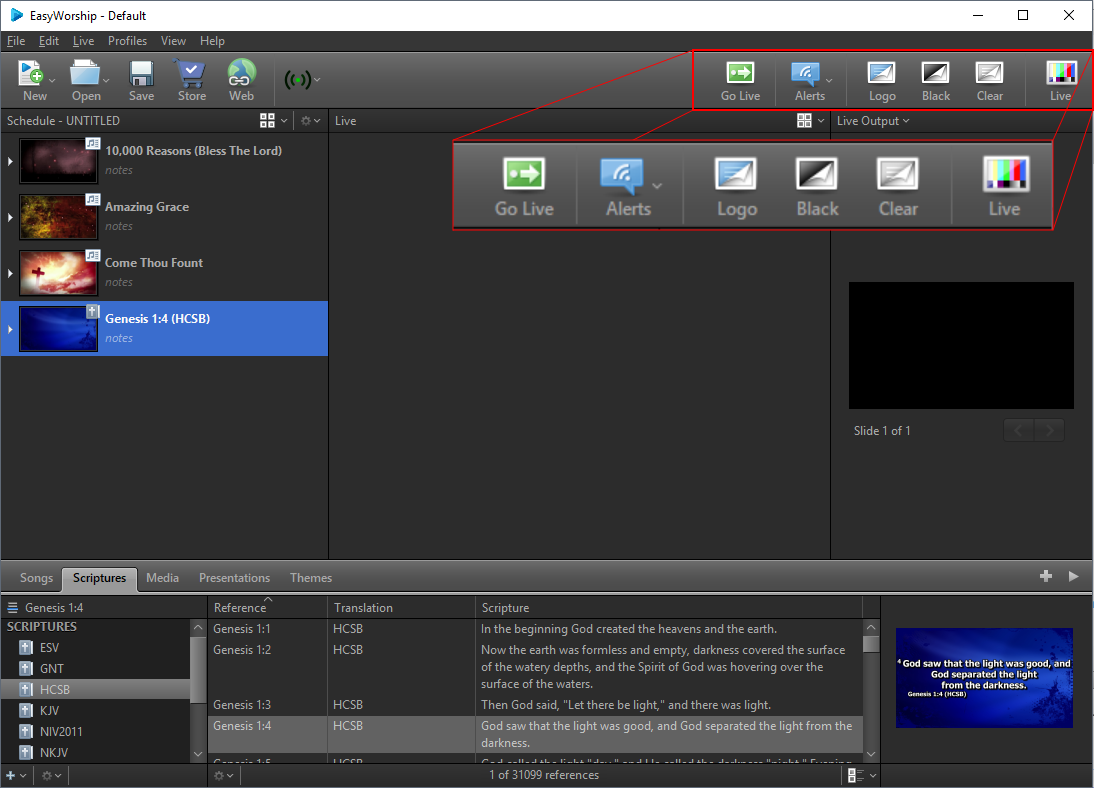
Go Live
- Select an item in the Schedule and click Go Live
 on the toolbar. If you don't see the item on the live screen, make sure you've clicked Live
  on the far right of the main menu. This Live button needs to be flashing for your live output to be on. If it isn't flashing, your live output is turned off.
 - When you are ready to send the next item to the screen click Go Live again.
Alerts
SEE Alerts
Using Logo, Black, Clear
Logo Button
At the beginning or end of a presentation, you might want to display a logo or title screen. Logo allows you to quickly display an image, video, or presentation that has been assigned as the logo background. Here's how to assign an image as the logo:
- In the Resource Area, click the Media tab, select Images or Video from the Resource Library on the left, or choose the Presentation tab.
- Right-click the image, video or presentation in the Resource List Area to the right.
- Select Set As Logo Background.
Black Button
Mistakes happen. When you need a quick save, Black is a quick and easy way to transition the entire screen to black.
Clear Button
Clear removes any foreground elements, including text and/or media files, from the screen while leaving the background running.
To turn Logo, Black, or Clear off, just click the respective button on the toolbar again.