Main General
To access the Options menu in EasyWorship, click Edit > Options.... In the bottom left corner of the Options window, there is a check-box next to Preview Output. Use this option to view changes on the output screen as you make them.
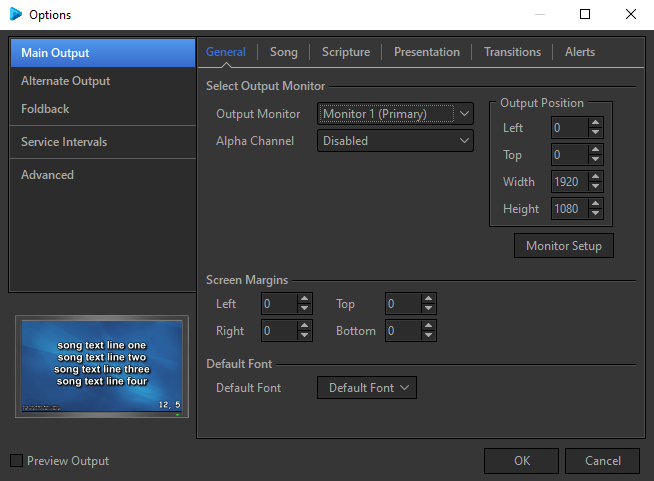
Select Output Monitor
This is where you can setup how and where EasyWorship sends its Main output.
|
Output Monitor |
This drop-down button allows you to set the screen or location where you wish to send the EasyWorship Main output. |
|
Output Format |
Allows you to select the format you wish to send to the NDI stream over your local network. This option is only available when selecting the NDI stream option from the Output Monitor drop-down. |
|
Output Position |
Shows you where is sending its output by pixel location. If custom position is select from the Output Monitor drop down, you will enter the location you want to send its output to in these fields. |
|
Alpha Channel |
This drop-down button allows you to select which output to send alpha channel content to. |
|
Monitor Setup |
Opens the Windows Display Settings window to allow you to extend your windows Desktop to another screen or change other display settings without having to close EasyWorship. |
Screen Margins
This section allows you to customize the screen margins, i.e., fine-tuning the placement of EasyWorship content on the output screen. (Margins normally do not need to be set.)
Default Font
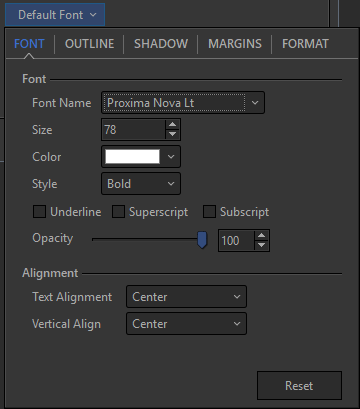
When you click the Default Font drop-down, the following window appears with different tabs, allowing you to set the default appearance of the text.
Font Tab
This tab allows you to select a default font style and size, change the color and style of the text, turn Superscript and Subscript on/off, set the opacity (transparency) of the text, and set the horizontal and vertical alignment of the text.
|
Font Name |
Allows you to select a font type from the drop-down. |
|
Size |
Sets the font point size. |
|
Color |
Changes the color of the text. |
|
Style |
Allows you to select Regular, Bold, Italic or Bold Italic. |
|
Underline |
Turns underline on or off. |
|
Superscript |
Turns superscript on or off. |
|
Subscript |
Turns Subscript on or off. |
|
Opacity |
Sets transparency of the text. |
|
Alignment |
Allows you to set the horizontal and vertical alignment of the text. |
|
Reset |
Will reset all settings in Default Font back to factory default. |
Outline Tab
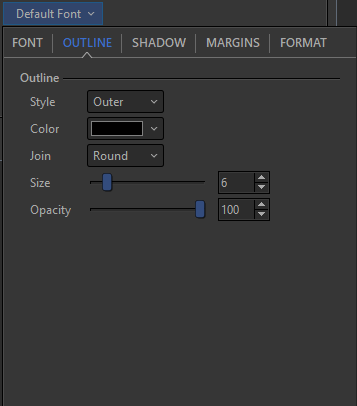
This tab allows you to turn text outline on/off, change the color of the text outline, choose between Round, Bevel, or Miter joins (influences joins in an outline, such as a corner), choose the location of the outline on the edge of the text (Outer, Center, or Inner), and set the thickness and opacity (transparency) of the text outline.
|
Style |
This drop-down allows you to choose None, Outer, Center, and Inner for the location of the outline on the edge of the text. |
|
Color |
Changes the color of the text outline. |
|
Join |
Allows you to choose between Round, Bevel, and Miter joins. This influences the joins in an outline such as a corner. |
|
Size |
Sets the thickness of the text outline. |
|
Opacity |
Sets transparency of the text outline. |
Shadow Tab
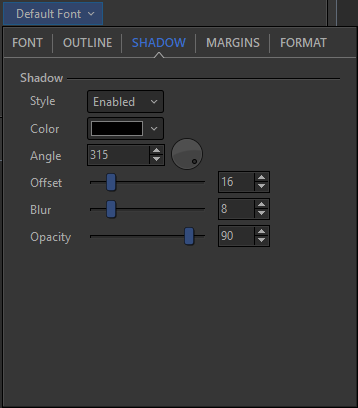
This tab allows you to turn text shadow on/off, change the color, angle, and offset (distance) of the text shadow, and set the blur and opacity (transparency) for the text shadow.
|
Style |
Turns text shadow on or off. |
|
Color |
Changes the color of the text shadow. |
|
Angle |
Sets the angle of the text shadow. |
|
Offset |
Controls the distance of the shadow from the text. |
|
Blur |
Allows you to blur the text shadow. |
|
Opacity |
Sets transparency of the text shadow. |
Margins Tab
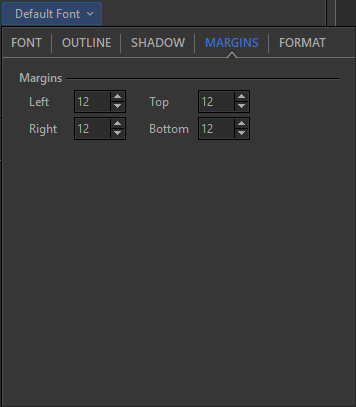
This tab allows you to set the Left, Right, Top, and Bottom margin settings.
|
Margins |
Left, Right, Top, and Bottom text margin settings. |
Format Tab
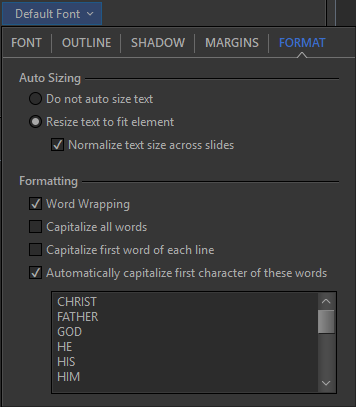
This tab allows you to customize song text formatting.
|
Auto Sizing |
Select "Do not auto size text" if you want to turn auto sizing off, or select "Resize text to fit element" to turn auto sizing on (check the box next to "Normalize text size across slides" if you want EasyWorship to automatically make text on all slides the same size). |
|
Word Wrapping |
Check this box to turn automatic word wrapping on. |
|
Capitalize all words |
Check this box to automatically make all words appear in call caps. |
|
Capitalize first word of each line |
Check this box to automatically capitalize the first word of each line in a song. |
|
Automatically capitalize the first character of these words |
Check this box to automatically capitalize the first character of the words listed below. |
NOTE You can add and remove words to auto capitalize by clicking in the box and typing in the word you want or selecting a word and pressing Delete on the keyboard.