Main Alerts
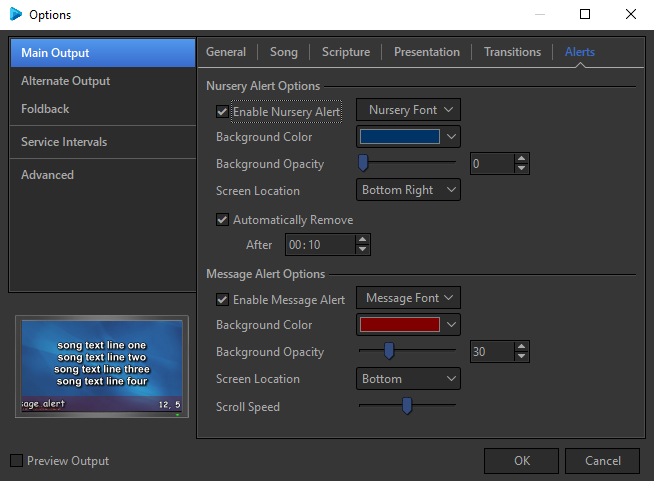
To access the Options menu in EasyWorship, click Edit > Options.... In the bottom left corner of the Options window, there is a check-box next to Preview Output. Use this option to view changes on the output screen as you make them.
Nursery Alert Options
|
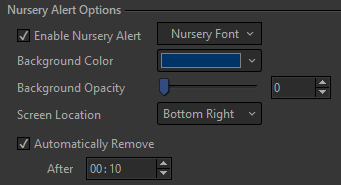
Enable Nursery Alert |
Check to allow nursery alerts. |
|
Nursery Font |
Click to set the default font settings for the nursery alerts. Refer to Default Font for information on the options in the Nursery Font window. |
|
Background Color |
Sets the background color of the nursery alert. |
|
Background Opacity |
Sets the background opacity of the nursery alert. |
|
Screen Location |
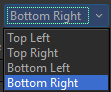
Allows you to set the position of the nursery alert on the screen.
|
|
Automatically Remove After |
To automatically remove the alert after a set amount of time, click the checkbox and enter the desired time limit. (mm:ss) |
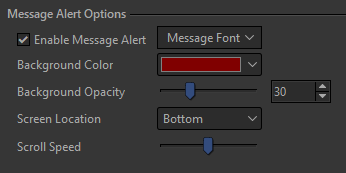
Message Alert Options
|
Enable Message Alert |
Check to allow message alerts. |
|
Message Font |
Click to set the default font settings for the message alerts. Refer to Default Font for information on the options in the Message Font window. |
|
Background Color |
Sets the background color of the message alert. |
|
Background Opacity |
Sets the background opacity of the message alert. |
|
Screen Location |
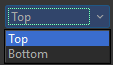
Allows you to set the position of the message alert on the screen.
|
|
Scroll Speed |
Sets the speed at which the messages are scrolled through. |