Editing Images
Right-Click Features
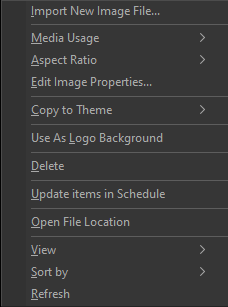
When right-clicking a thumbnail in the Images Library, you have the following options.
|
Import New Image File... |
This is a shortcut for adding additional images. |
|
Media Usage |
Set the usage of the image whether you'll use it as a background, foreground, or use Automatic. |
|
Aspect Ratio |
Set the aspect ratio of the image whether you want it to stretch, maintain, or zoom in, or use Automatic. |
|
Edit Image Properties... |
Opens the Image Properties Editor, which allows you to add a title, control the default aspect ratio for the image, and more. |
|
Copy to Theme > |
Select Song Theme, Scripture Theme, or Presentation Theme to add the image to the desired theme library. |
|
Use as Logo Background |
Sets the image as the default background logo. Clicking the Logo button in the Toolbar will output the logo you selected to the screen. Clicking it again turns off the logo. |
|
Delete |
Deletes the image from the Images Library. It will prompt you to delete it completely from the / Resources / Images folder. |
|
Update items in Schedule |
Allows you to update the same item in the schedule if you make edits in the database. |
|
Open File Location |
Open the File Explorer window where that image file is located on the computer. |
|
View |
Allows you to change icon size for a custom thumbnail view. |
|
Sort by |
The same as in Windows. |
|
Refresh |
This will refresh the thumbnails for the selected item. |

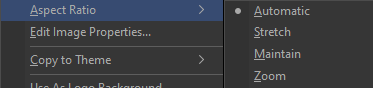
Image Properties Editor
Follow these steps to edit the properties of any image in EasyWorship:
- Click the Media tab in the Resource Area.
- Select Images from the Resource List on the left.
- Right-click any image and select the option to Edit Image Properties.
- The Image Properties editor will appear, allowing you to customize properties of the image such as title, aspect ratio, copyright information, tags, etc.
Properties Tab
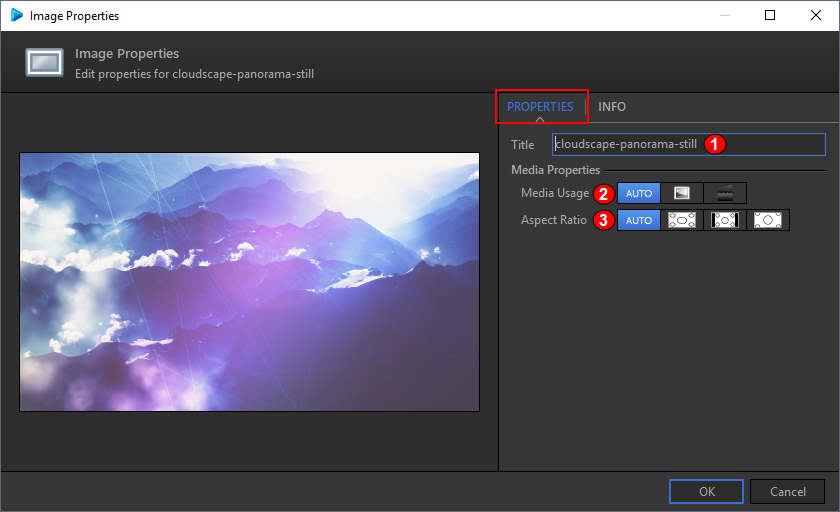
- Title: Enter the name of the image in this field.
- Media Usage:Changes how the background image behaves.
- Selecting the Picture icon
 stretches the image to fill the screen and will default as a background.
 - Selecting the Movie icon
 does not stretch the image and will default as a foreground image.
- Aspect Ratio: Allows you to maintain the aspect ratio, stretch, or zoom the image.
- Selecting the Stretch icon
 will stretch the image to fit the screen.
 - Selecting the Zoom icon
 will zoom the image to fit the screen but will not distort the image.
 - Selecting the Maintain icon
 will keep the image at the original aspect ratio.
Info Tab
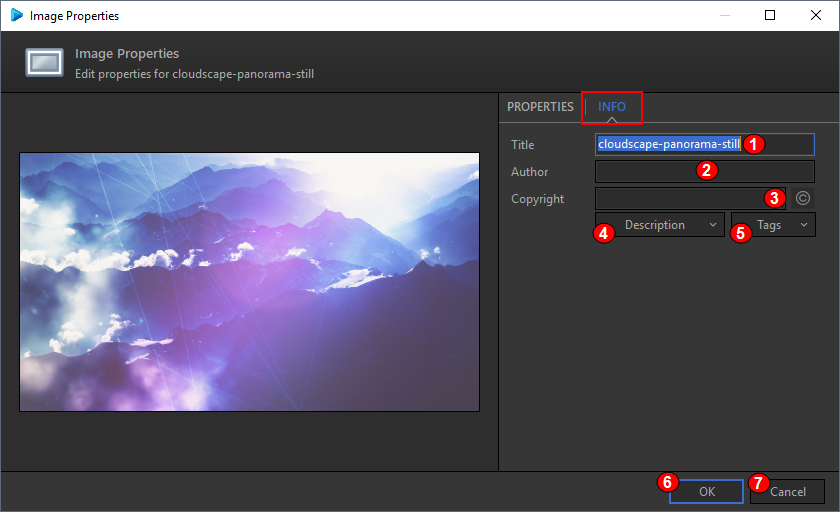
- Title: Enter the name of the image in this field.
- Author: Enter the Author in this field.
- © Button: Enter copyright info in this field. Pressing the copyright logo button adds the copyright logo to the copyright field.
- Description: In the drop-down field, enter a description for the image (description keywords are searchable from the search bar in the Resource Area).
- Tags: In the drop-down field, enter tags for the image (tags are searchable from the search bar in the Resource Area).
- OK: Saves the Image properties and closes the window.
- Cancel: Cancels all changes and closes the window without saving.
Click OK When you're finished editing to save your changes.