Downloading Free Media
Premium Subscription
EasyWorship Premium Subscription comes with the ability to download any media from our Premium Library which is continuously growing. The following instructions will walk you through downloading Premium media.
- Open EasyWorship.
- Click on the Media tab.
- Click Premium on the left.
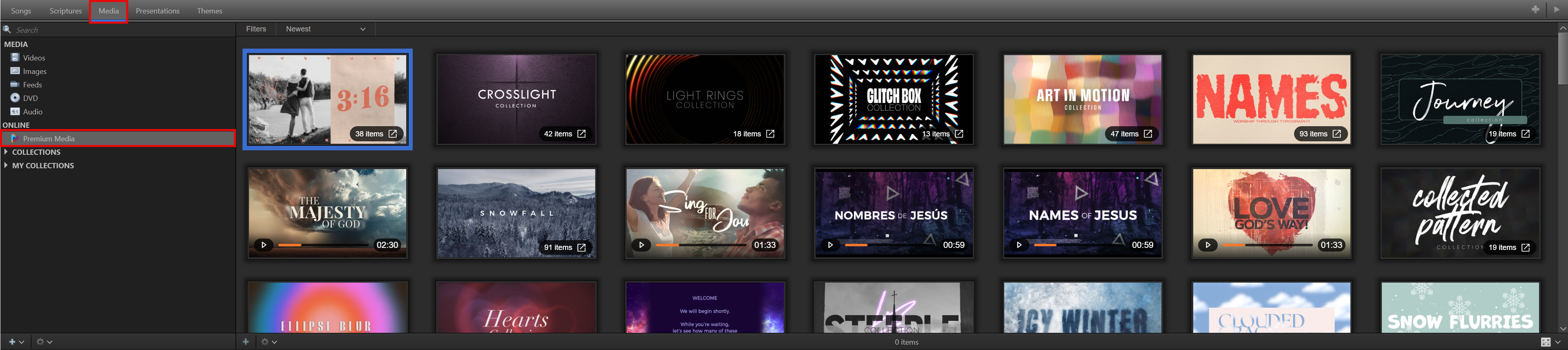
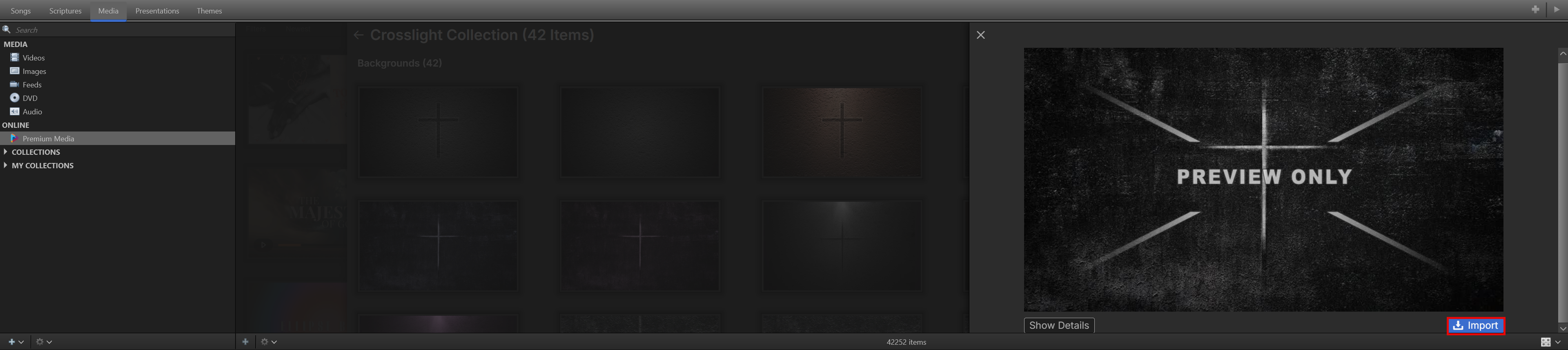
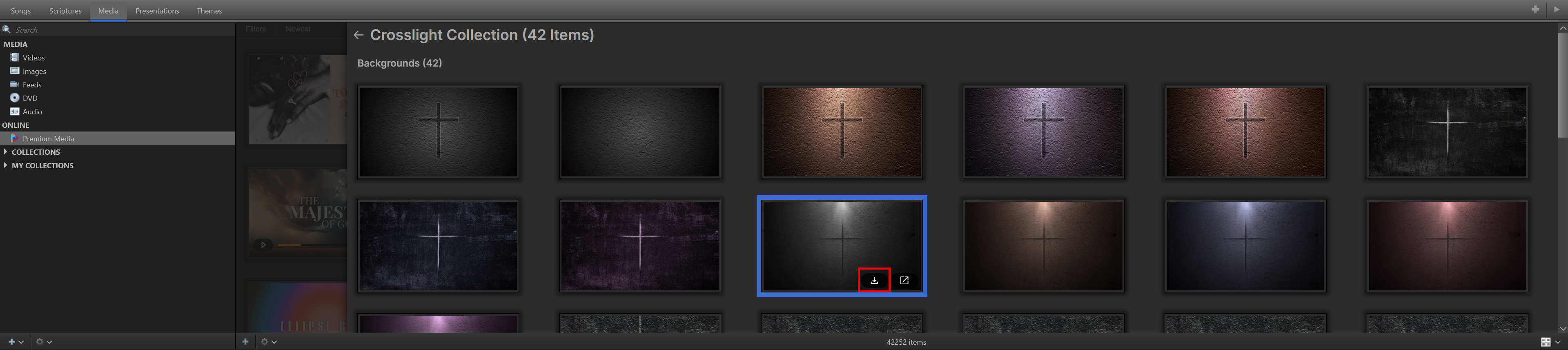
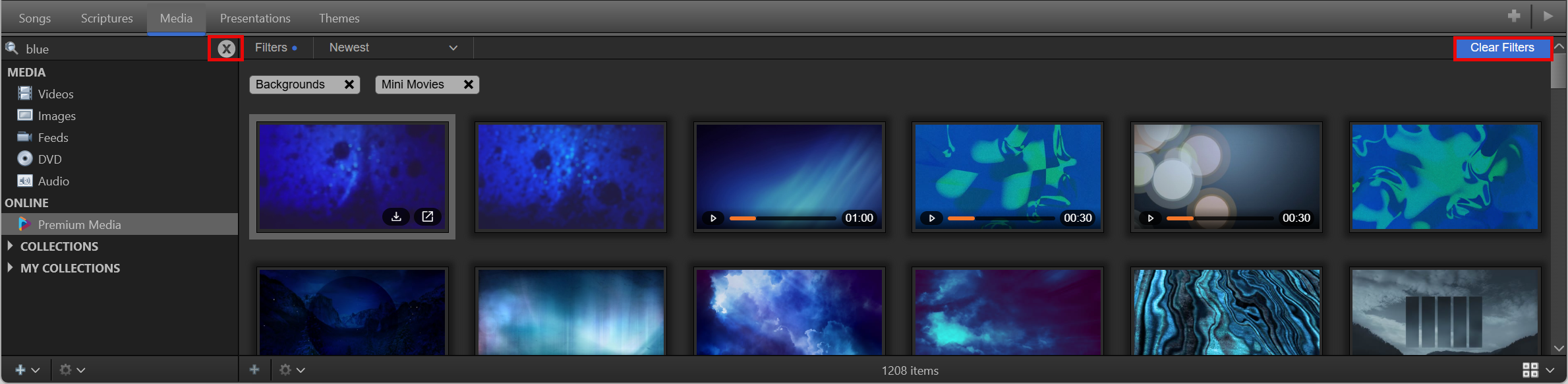
- For Collections, double-click the Collection and select the piece of media you want to download. Double-click and then click Import on the right. You can also click the download button on the thumbnail.
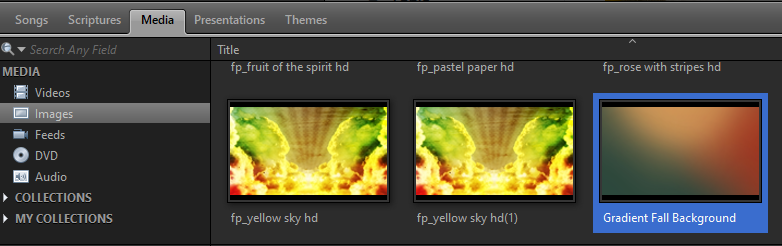
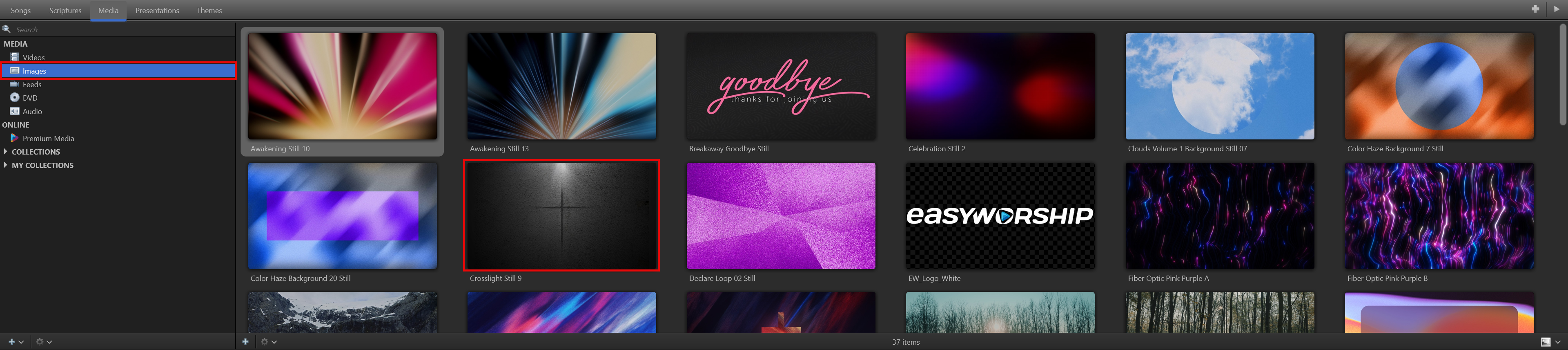
- The downloaded items will appear in the Media tab of the Resource Area in their respective folders (videos or images). The image or video thumbnail will appear faded until the download has completed.
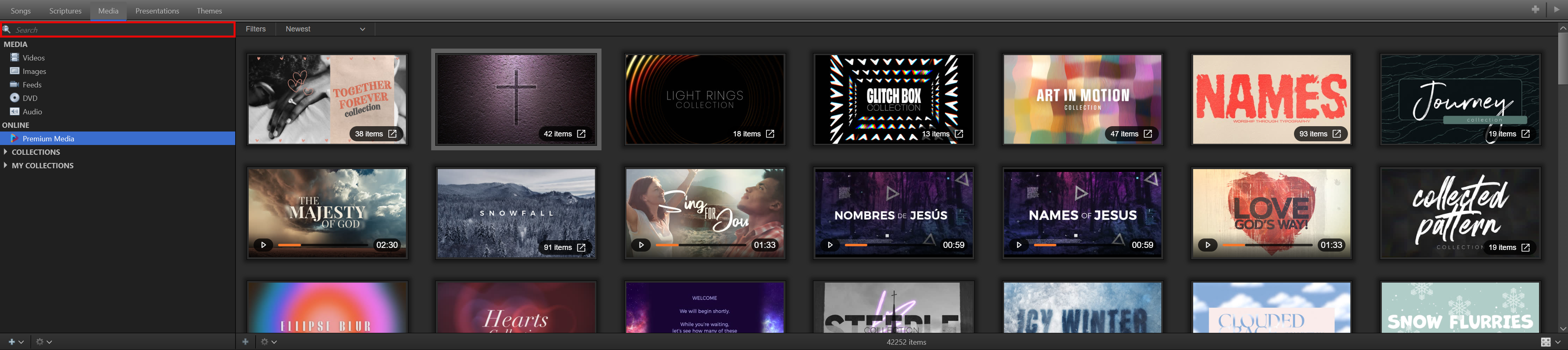
- Use the Search box to find the media you want.
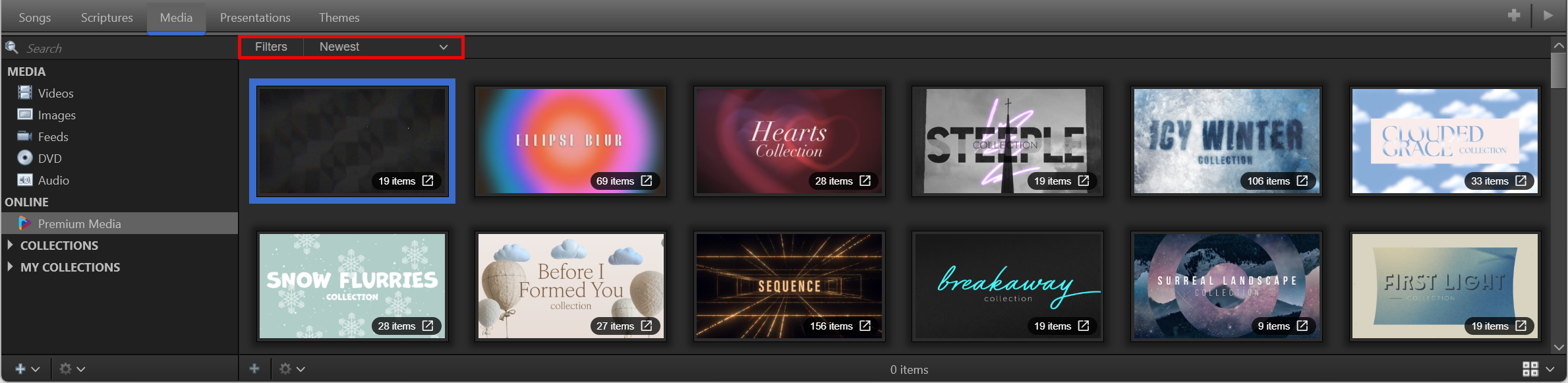
- Filter your search results with the drop-down menus at the top of the library.
- Click the X in the search box to clear the search. Click Clear Filters on the right to reset all the filters.
Basic Subscription
EasyWorship subscription comes with a package of free media that you can access through the Media Store in EasyWorship. The following instructions will walk you through downloading your free media.
- Open EasyWorship.
- Click Store
 on the toolbar.
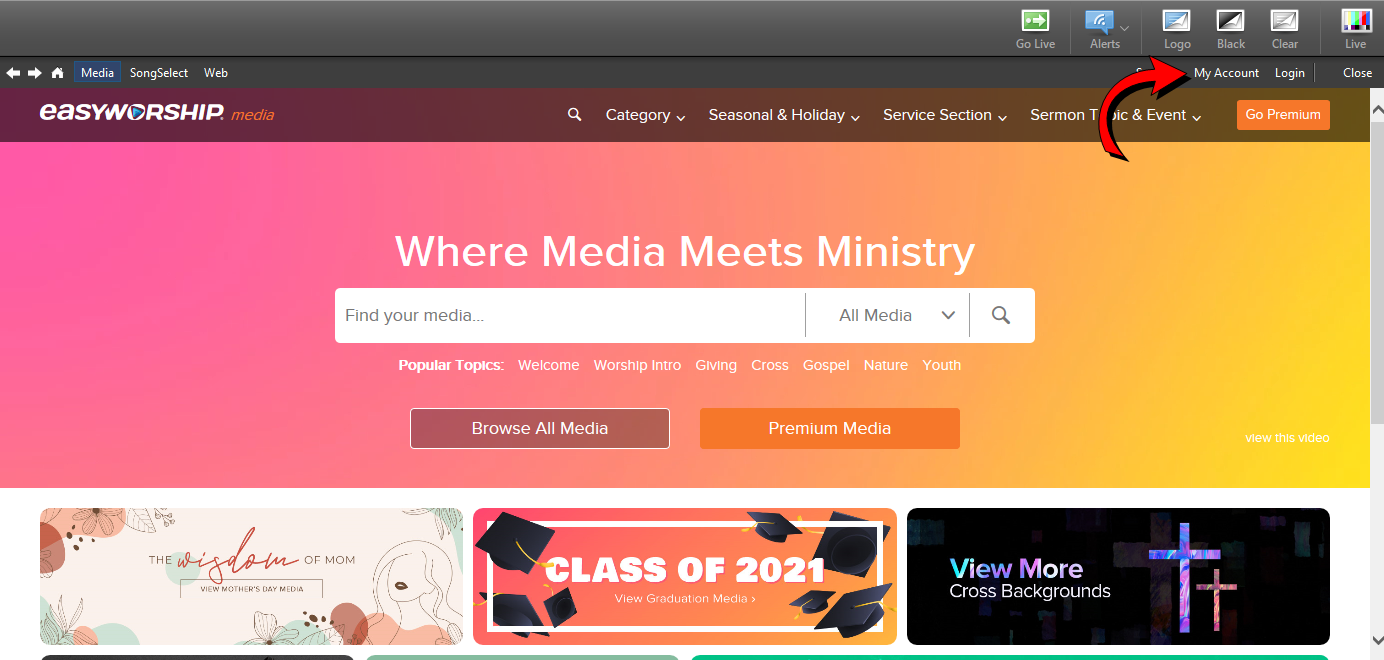
 - Click My Account in the top right corner.
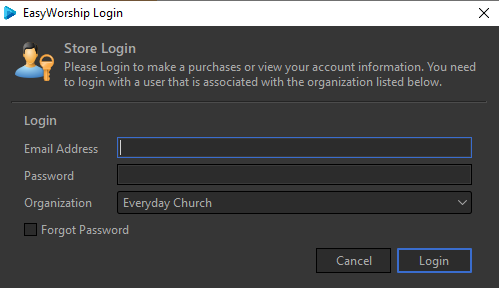
- Login with the same email and password you used to register EasyWorship.
- Click on Media Downloads at the top-right.

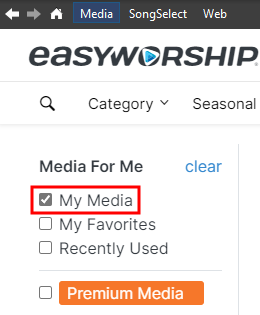
- Check the My Media checkbox on the left.
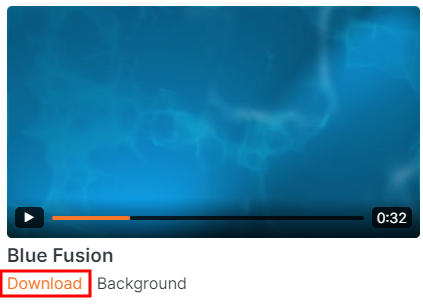
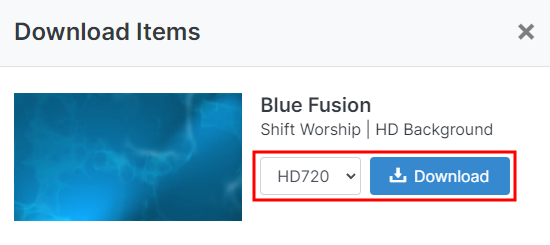
- Click on the thumbnail or on the Download button and a Download Items window will open.
- Select the resolution and format you want and click Download.
NOTE When provided the option for HD content, you may need to select SD if your computer seems to lag when playing HD video files through EasyWorship.
SEE System Requirements for playing HD content.
- The downloaded items will appear in the Media tab of the Resource Area in their respective folders (videos or images). The image or video thumbnail will appear faded until the download has completed.