Display Foldback (Stage Display)
If you want to take advantage of the Stage Display (Foldback) feature in EasyWorship, this article will explain what you need to get started along with step-by-step setup instructions.
What Is Display Foldback?
Your audience is first, but your stage needs support, too. While the audience sees the presentation on the main screens, Stage Display lets the stage see a custom display with the current presentation or video, a preview of the next scheduled item, a clock and private alerts. This goes for PowerPoint presentations as well. EasyWorship even lets the stage see variable thumbnails for previous, current, and next slide.
Set Up Video Card
- Connect the front of house video cable (from the output device the congregation will see) to one of the video ports on the Mac.
- Connect the foldback video cable (from the output device the stage will see) to another video port on the Mac.
NOTE If the ports on your video card don't match your cables you can use a converter to connect your projector or TV to a port on your Mac.
- Extend the desktop to the secondary and third monitors.
Set Up EasyWorship
- In EasyWorship, click EasyWorship > Settings.
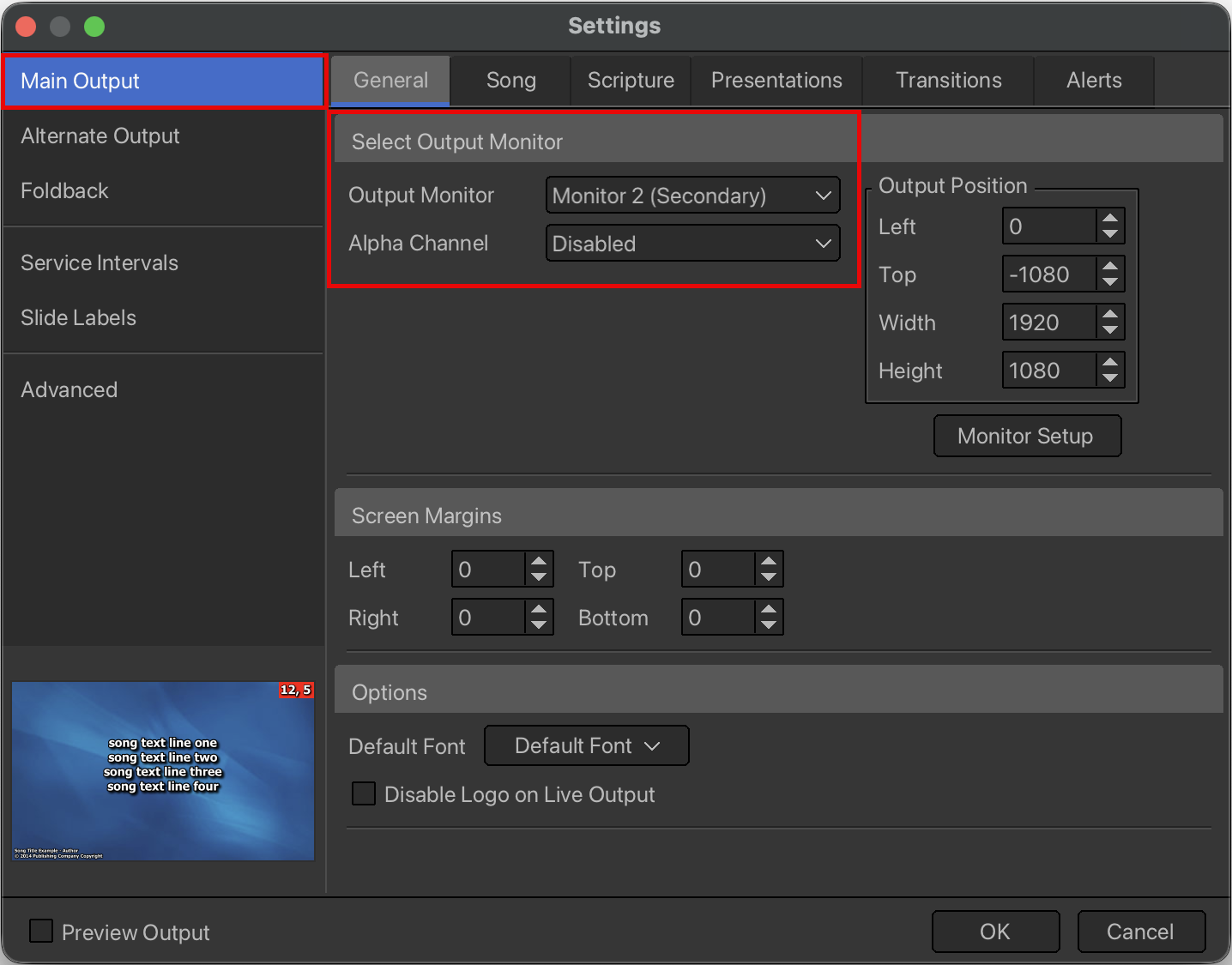
- Under the Main Output tab, click the Output Monitor drop-down, then select the monitor you wish to use for the Front of House display.
- Click the Foldback tab on the left and check the box to Enable support for display Foldback (stage display).
- Under Select Output Monitor, select the monitor you wish to use for Display Foldback.
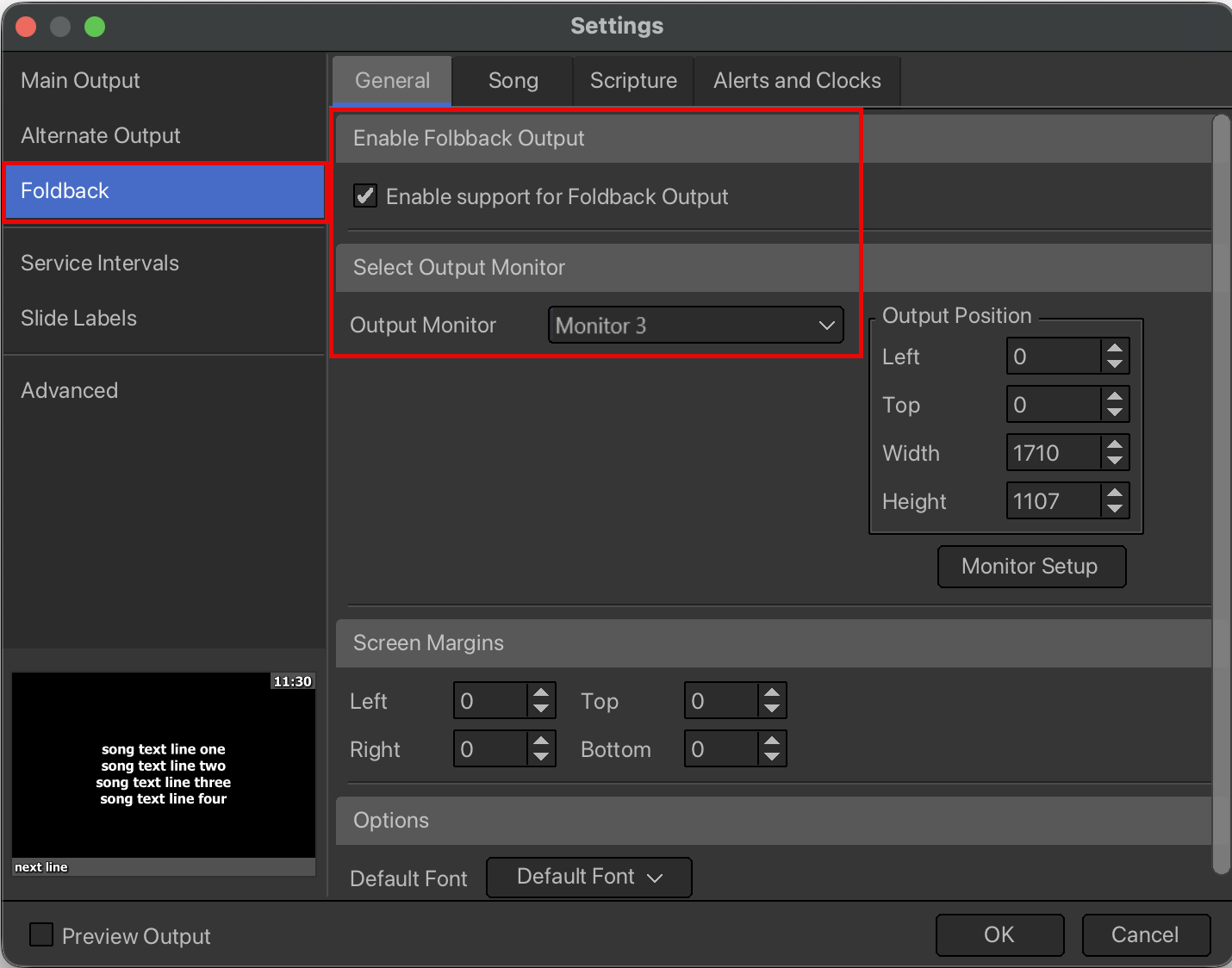
- Click OK. Display Foldback has been configured.