Backup EasyWorship Data
The following instructions will help you backup your EasyWorship songs and media database so you can restore it to another. Before starting this process, you will need a USB flash drive or external hard drive. In the steps below, we will call this your backup drive.
IMPORTANT! ***Before starting this process , you will need a USB flash drive or external hard drive. (in the steps below, we will call this your backup drive.)
- Connect your backup drive*** to the computer.
- Close all other programs and windows before starting.
- Open EasyWorship.
- Click the Profiles menu.
- Click Profiles Manager.

- In the middle of that window, click on the blue link next to the words 'Instance Location'.
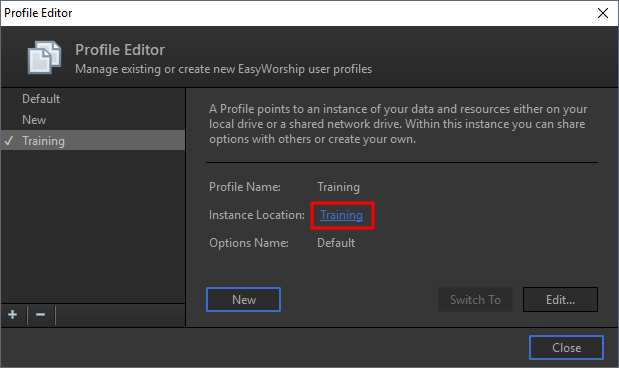
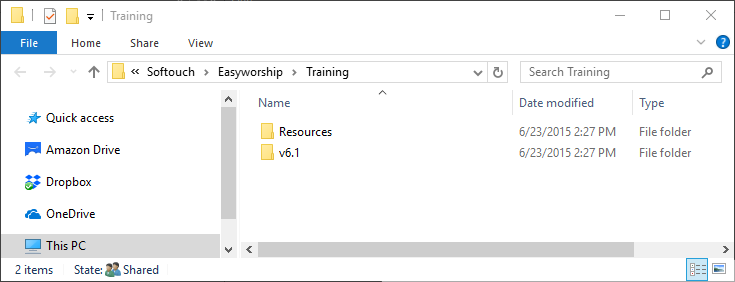
- A new Windows File Explorer window will open. Do not close this window. Click the Minus sign in the top right corner to minimize it to your Windows taskbar.
- Click Close on the Profile Editor in EasyWorship.
- Close EasyWorship.
- Restore the Windows File Explorer by clicking on the Windows folder Icon
 on the taskbar.
 - You should now see the File Explorer window that appeared on step #7 (when you clicked the link next to Instance Location).
- Hold down the Ctrl key on the keyboard and click on the Resources and v6.1 folders, then release the Ctrl key. (Both of those folders should now be highlighted blue)
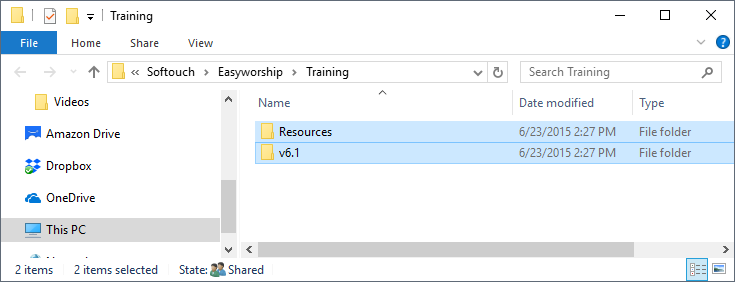
- Right click on either one of those selected folders and click 'Send to' from the pop-out menu.
- You will see a second pop-out menu with a list of locations to send the files to. Click on the backup drive you connected in step 1. (you should see files copying)
- When the folders have finished copying, you can disconnect the drive from the computer.
Your song and media databases are now backed up on your USB or external drive. You can store this in a safe location to use as a backup file in case you have a hard drive failure in the computer and need to restore your database, or you can use it to transfer that database to another computer.
SEE Restore EasyWorship Data for instructions on restoring the database back to a computer.