Advanced
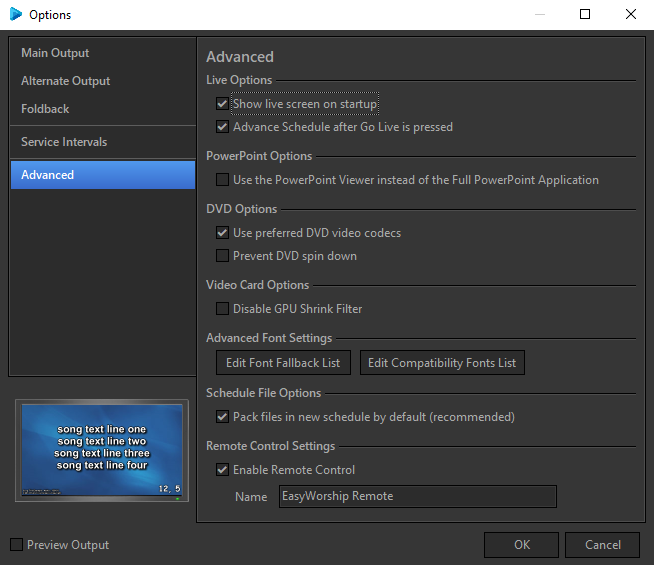
To access the Options menu in EasyWorship, click Edit > Options.... In the bottom left corner of the Options window, there is a check-box next to Preview Output. Use this option to view changes on the output screen as you make them.
Live Options
|
Show live screen on startup |
When checked, the live output will be active when the program has launched. If you uncheck this box, you will have to manually activate the live output by clicking the Live |
|
Advance Schedule after Go Live is pressed |
When this box is checked, EasyWorship automatically selects the next item in the schedule when Go Live is clicked. For example, the first item in your schedule is a mini-movie and the second item is a song. When you select the first item and click Go Live, the mini-movie plays and the song is automatically selected and ready to go live as soon as the mini-movie ends. All you need to do is click Go Live again to send the song to the live output for the audience. |

PowerPoint Options
|
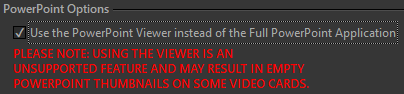
Use PowerPoint Viewer instead of Full PowerPoint Application |
When this box is checked, EasyWorship will load the PowerPoint Viewer to display PowerPoint slide shows instead of the PowerPoint application.
NOTE It is recommended to have a current copy of the PowerPoint application installed on your computer if you intend to use PowerPoint presentations in EasyWorship. WARNING! The PowerPoint Viewer is an unsupported feature and may result in empty PowerPoint thumbnails with some video cards. |
DVD Options
|
Use preferred DVD video codecs |
When this box is checked (recommended), EasyWorship will look for and use DScaler if it is available (EasyWorship ignores other decoders if the DScaler codec is available). SEE Installing Dscaler for instructions on installing the Dscaler DVD codec. |
|
Prevent DVD spin down |
When checked, this keeps the DVD in the drive spinning at all times to reduce the amount of time needed to send a DVD clip to the screen. |
Video Card Options
|
Disable GPU Shrink Filter |
Only select this if you are only seeing a solid color on the output screen. This option should only be used to troubleshoot rendering issues with your video card. |
Advanced Font Settings
|
Edit Font Fallback List |
When EasyWorship encounters a character which is not part of the designated font, a fallback font is used instead. Typically, a fallback font will contain symbols representative of the various types of Unicode characters. |
|
Edit Compatibility Fonts List |
If you are using non-Latin fonts that do not support Unicode, add them to this list to force them to appear in the Schedule and Words Editor. |
Schedule File Options
|
Pack Files in new schedule by default (recommended) |
To run the Schedule from the same computer, you can uncheck the option to Pack files in schedule box. This will save space on your computer. If you'll be transferring the schedule to another computer, check this box. |
Remote Control Settings
|
Enable Remote Control |
If you have the EasyWorship app installed on your iPhone, iPad, or Android device, you can check this box to enable the remote control function. This will allow you to pair your mobile device with EasyWorship to be able to control the schedule remotely or use your device as a live output viewer. |
|
Name |
A unique name of your computer to be able to select when pairing with your mobile device. |