Adding and Using Videos
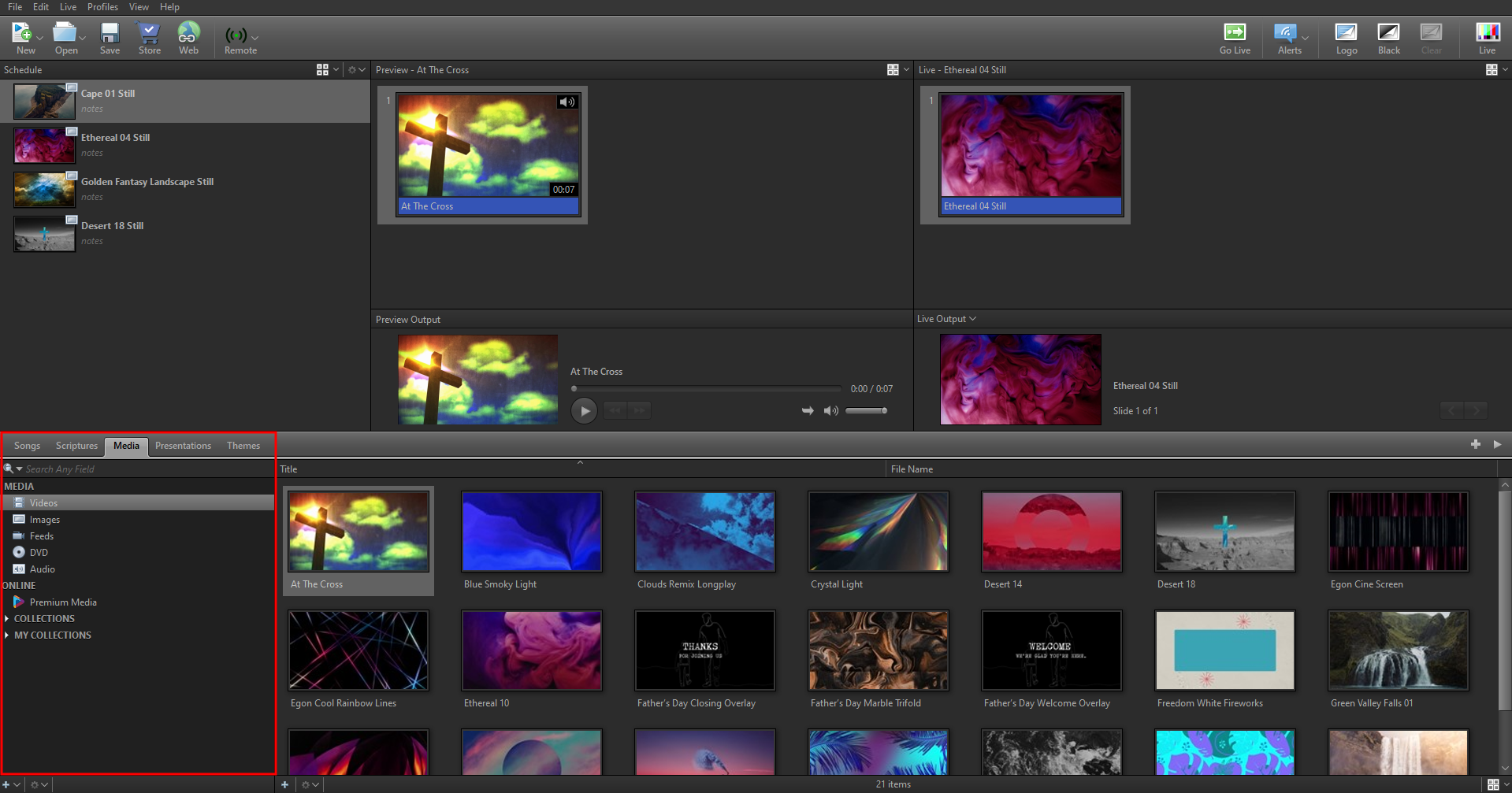
Add New Videos
EasyWorship comes with a set of videos ready for you to use. But more than likely you'll want to add new videos or background motions that you've purchased online or produced yourself. Here's how to add new videos to your Videos Library.
- Click the Media tab.
- Select Videos in the Resource Area on the left.
- At the bottom of the Videos Library (below Image thumbnails), click the Add icon
 .
. - Browse to the video you want to import and select it.
- Click Open.
- The imported video appears in the Videos Library List.
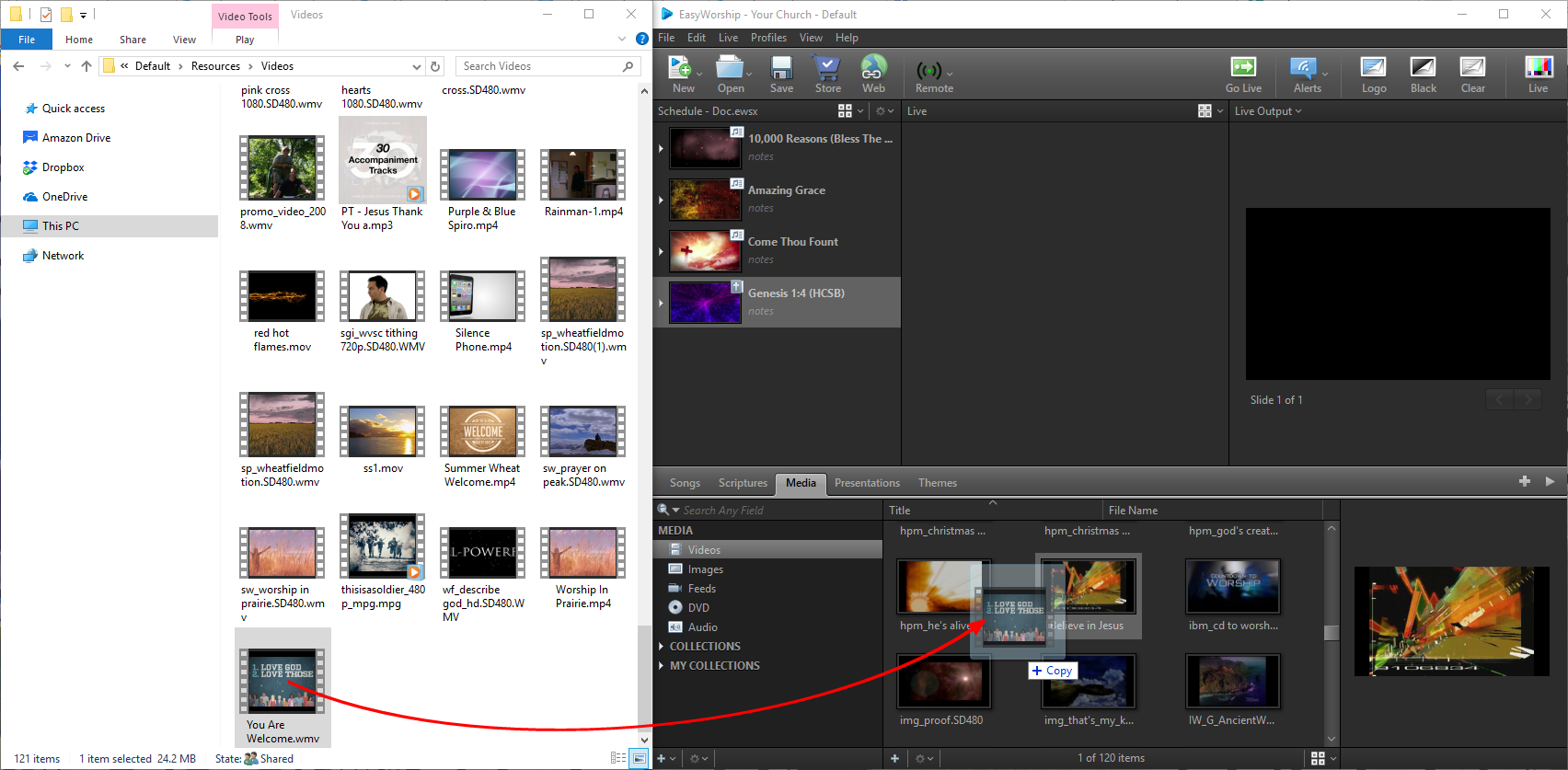
NOTE You can also drag-and-drop a video from Windows File Explorer or the desktop into the Videos Library List.
NOTE The best video formats to play in EasyWorship are .wmv or .mp4 files which are the most common video types. You can also play .mpg and .mov. For the best results, store all videos in Your Profile/images folder.
SEE Locate Your Profile Data to find out how to locate your videos folder on your computer.
SEE Premium Media to find out how import Premium media.
Adding Videos from the Store
SEE Downloading Free Media for information on downloading and installing free / sample media from the media store.
SEE Purchasing Media from the Store for information on purchasing media from the EasyWorship store and online store.
SEE Downloading Purchased Media for information on downloading your media into EasyWorship from the store.
Playing Videos
- In the Resource Area, click the Media tab.
- Select Videos from the Resource Area on the left.
- Drag and drop a video to the Schedule Area.
- Select that video in the schedule and click the Go Live button Or double-click the video to send it live.
Drag & Drop Features
Add to Schedule: Drag and drop a video into the schedule from the Videos Library.
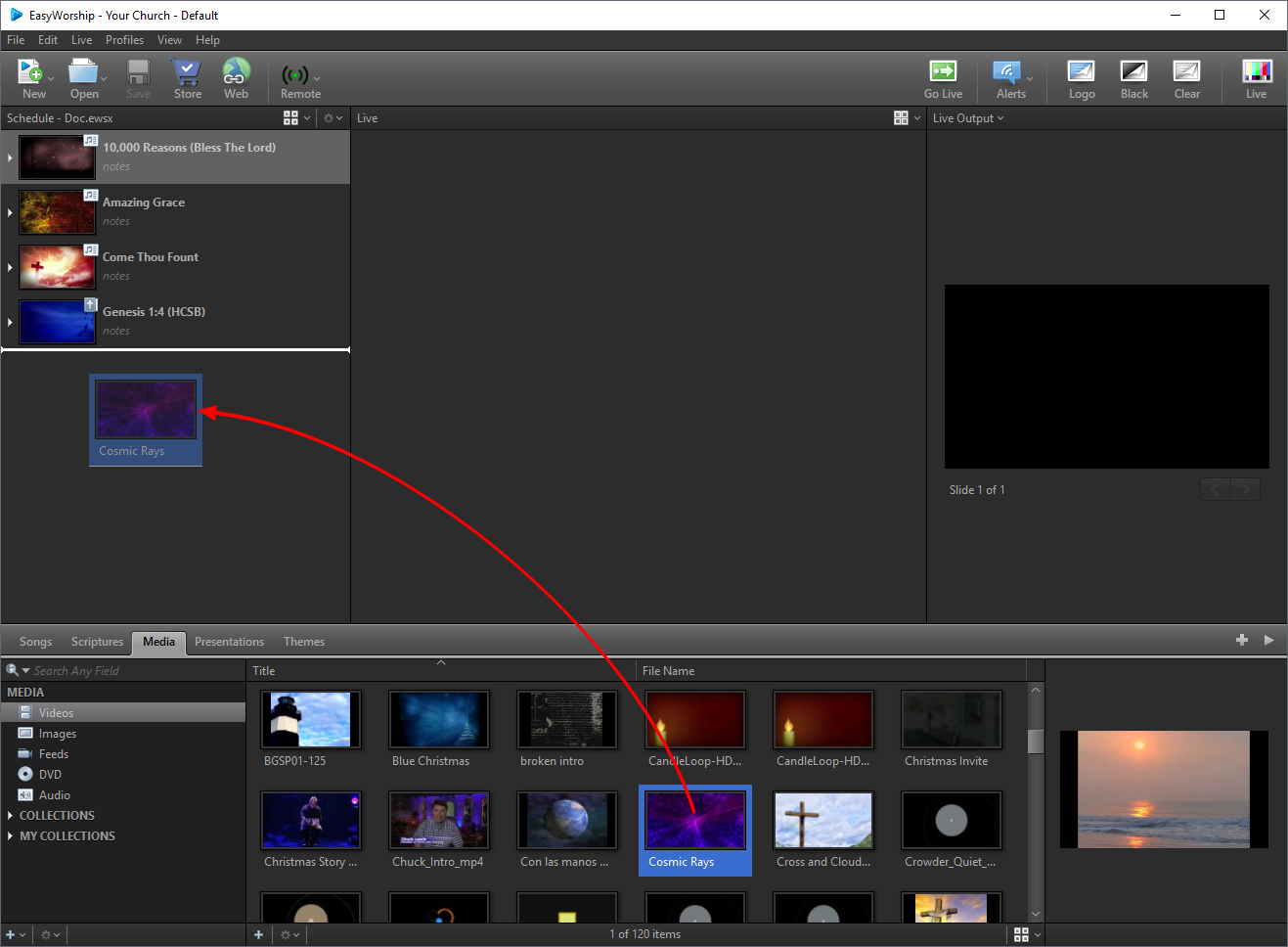
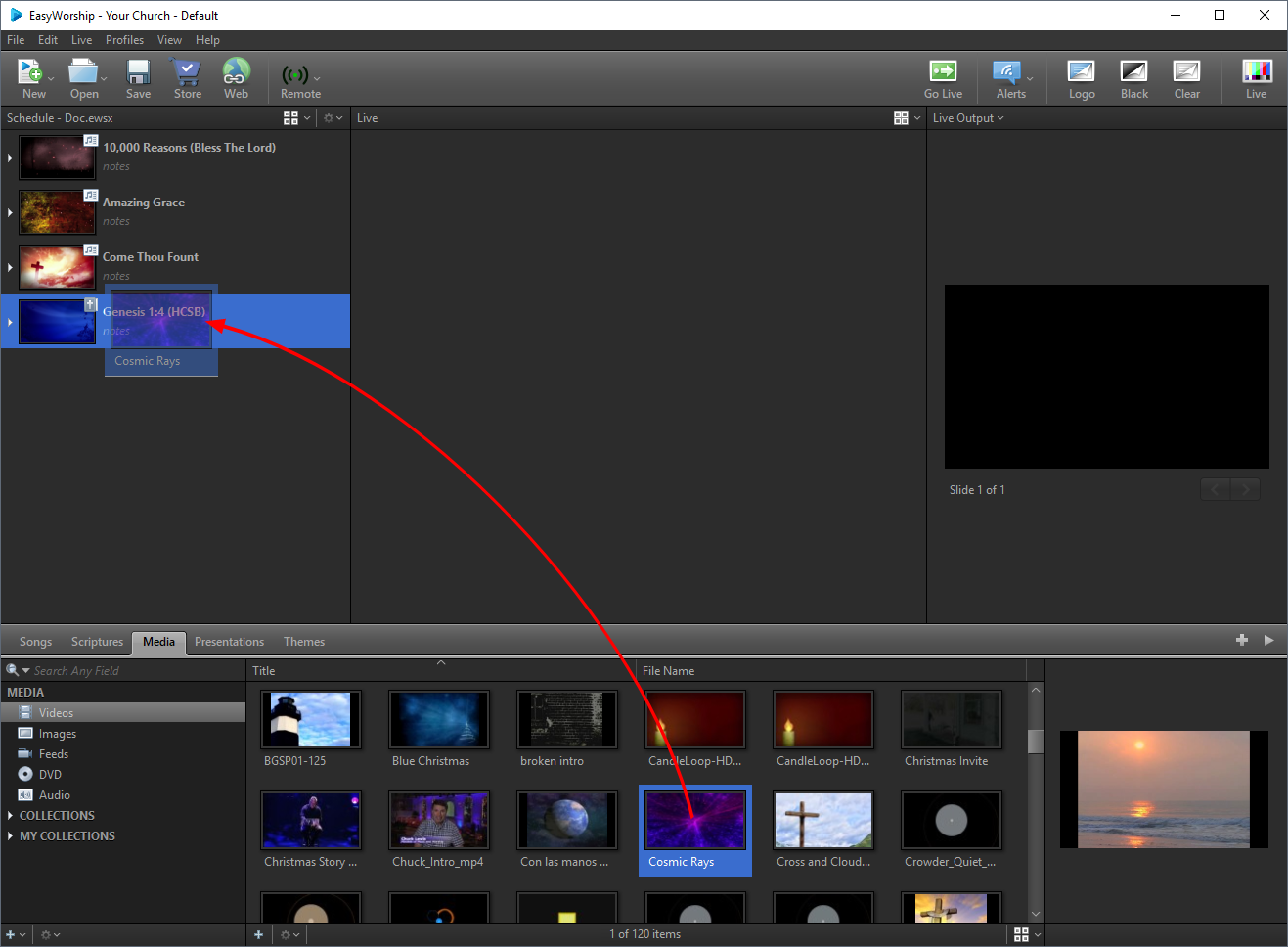
Use as Background: Drag a video onto a song in the schedule to assign that video to a song as a background.
Add a New Video: Drag and Drop videos from any folder in Windows to the Videos Library. EasyWorship will then add a shortcut to that image into your images tab.
Add A Video As An Element
You can add a video as an element on a slide in the Song, Scripture, Presentation or Themes editors by using the Media button on the Editor toolbar.
- In the editor, select the slide you want to add the video to and click Media on the toolbar.
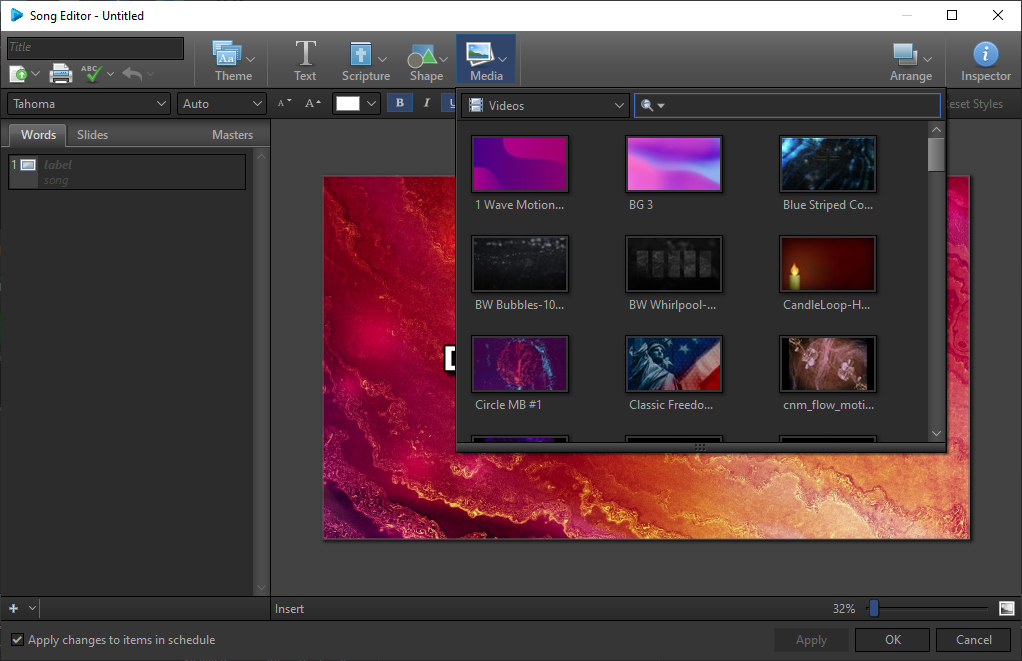
- Click the video you want to add it to the slide.
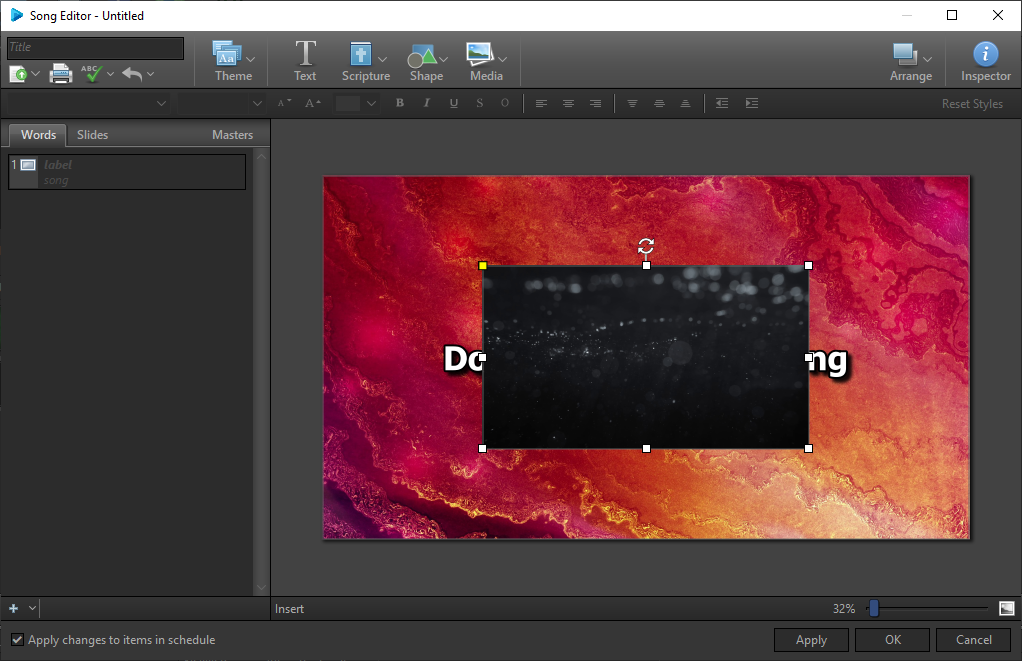
- Use the handles to resize and move the element to the desired size and location.
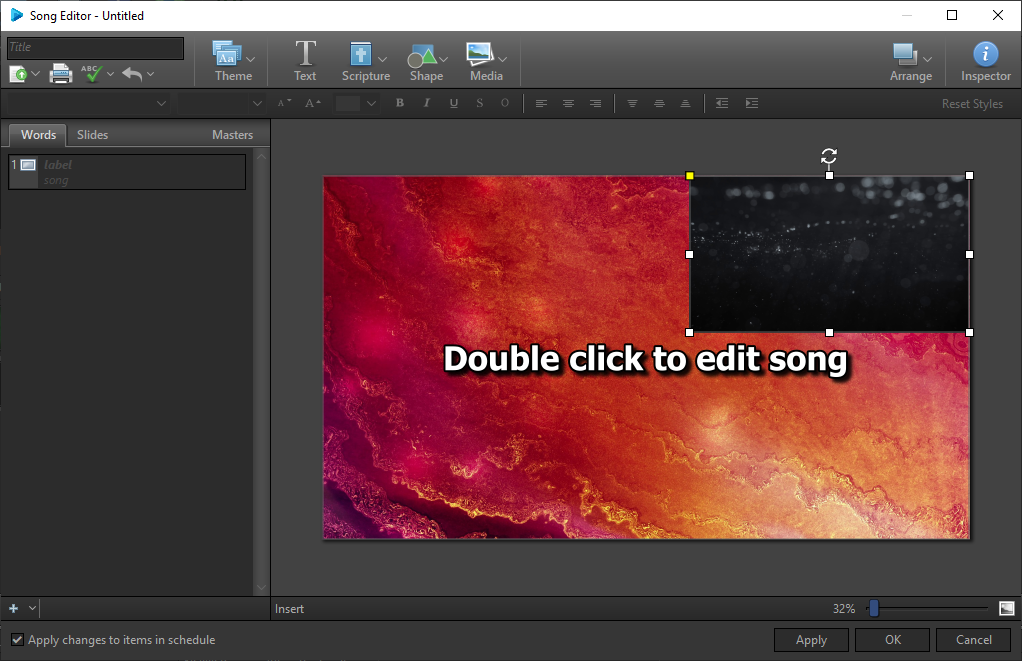
- Click OK