Adding Items to the Schedule
Adding items to your Schedule is as easy as dragging and dropping a song, scripture, media item, or presentation from the Resource Area to the Schedule Area. Try adding a few items to your Schedule.
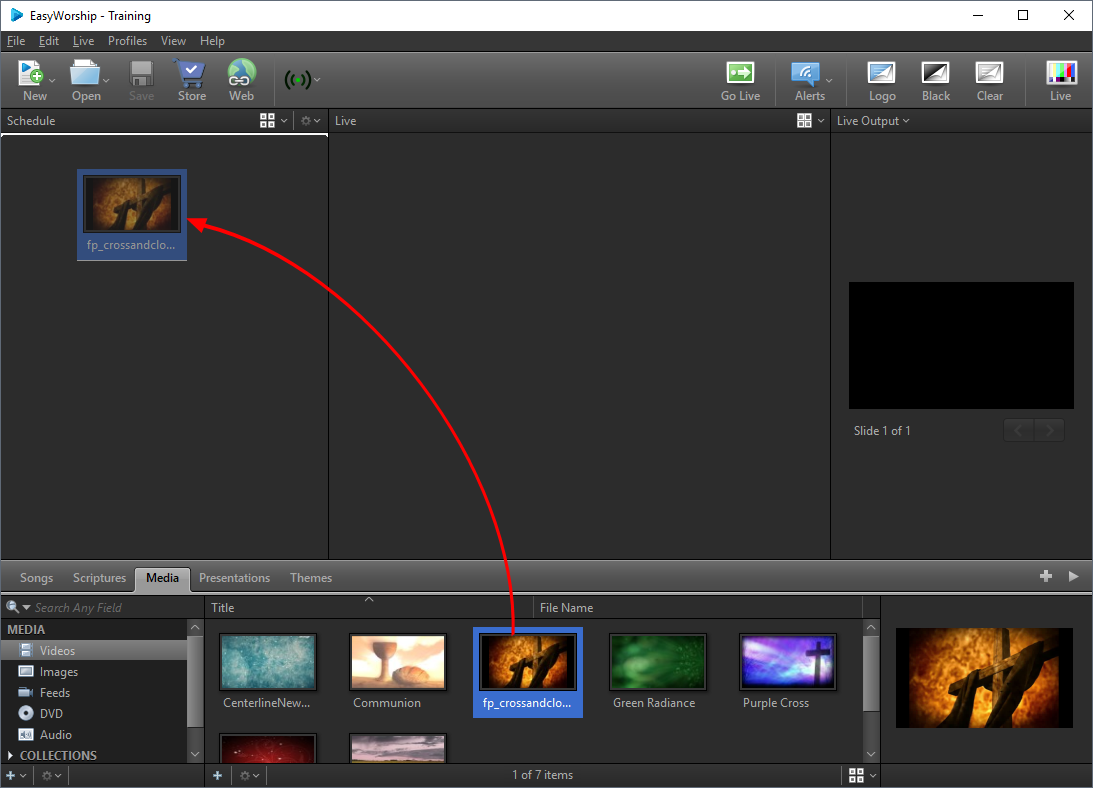
- For example, to start your next service with a video, go the Resource Area and click the Media tab.
- Select Videos from the list on the left.
- Now, just drag-and-drop a video file from the Resource Area to your new Schedule.
SEE Images or Videos to add more Videos and Images to your Media.
Drag-and-drop Features
You can drag-and-drop Schedule items up or down to re-order your set list.
In the Preview and Live and Preview and Live Combined views, you can drag media items on top of each other in the schedule and EasyWorship will create a presentation. Drag them to the Preview Area and they'll be added to the presentation.
Hold down the Ctrl key while dragging and dropping to combine schedule items.
Customize Your View
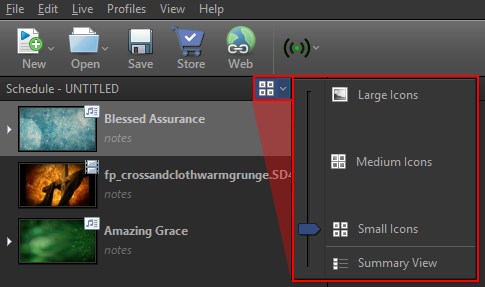
Customize the icons in the Schedule Area as small, medium, large or summary view. Just click the drop-down arrow at the top of the Schedule Area and use the slider to customize the icon view.
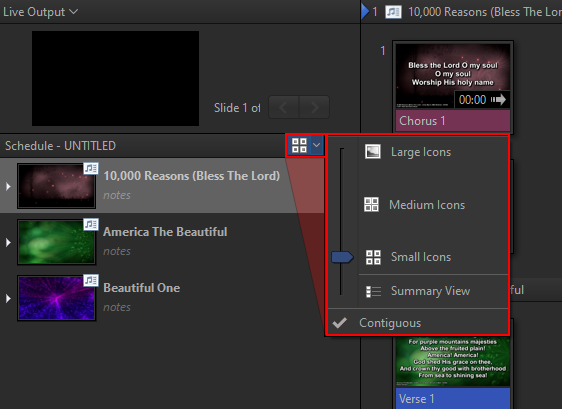
Contiguous Schedule View
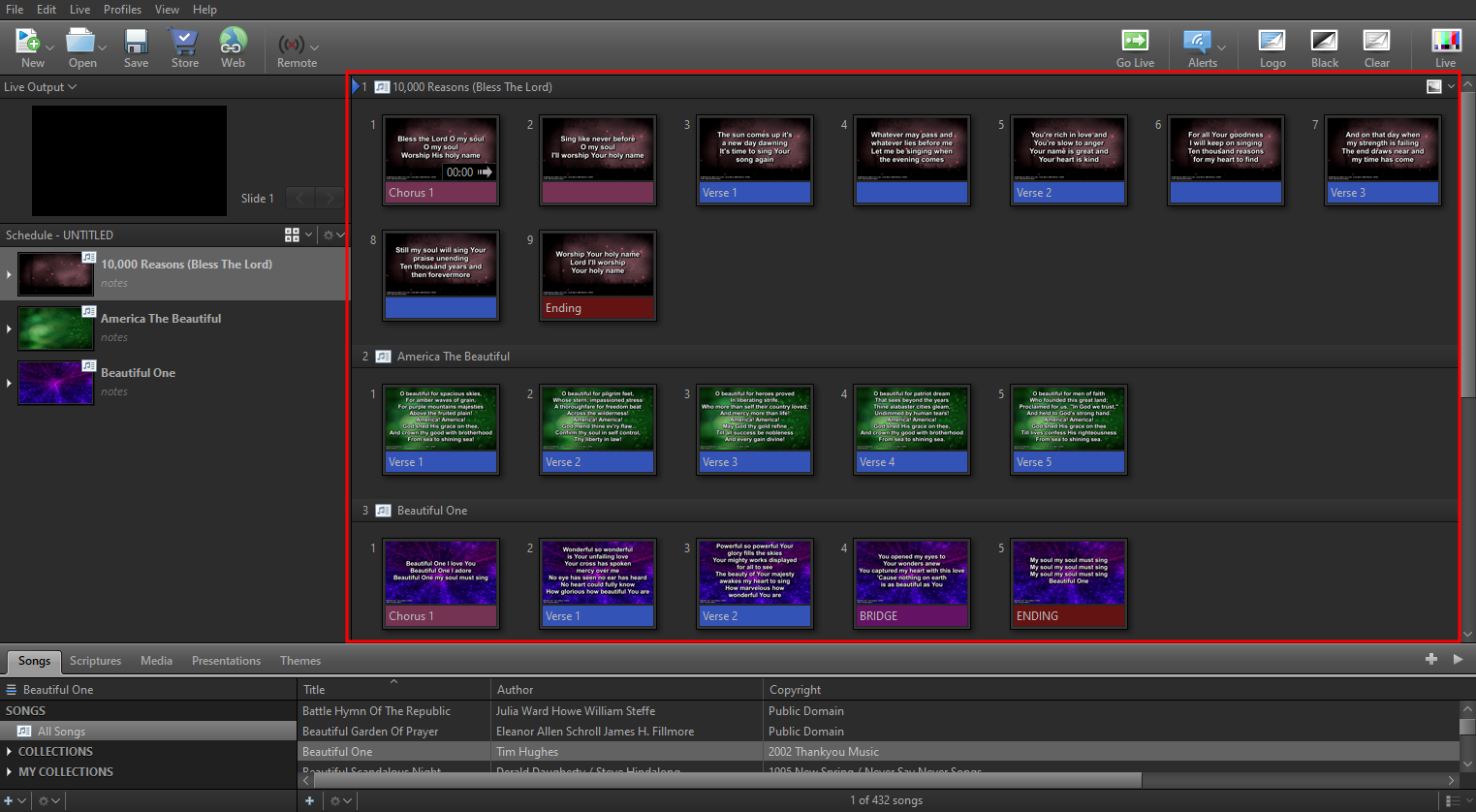
In the Preview and Live Combined view you will also have the option of enabling Contiguous view. This will allow you to see the full schedule details in the Live window and arrow through the entire schedule without having to press Go Live for each schedule item.
Assign a Background or Audio to Songs
It's easy to add a background, camera feed, or audio track to your song slides.
- Click the Media tab in the Resource Area.
- Select Videos, Images, Feeds, or Audio from the left.
- Drag an item from the Resource List Area on the right and drop it on top of a song in the Schedule Area. That item has now been assigned to the song in the Schedule. The song's master thumbnail in the Resource Area will reflect your changes. (You can assign audio to a slide or song even if you already have a background assigned to it.).
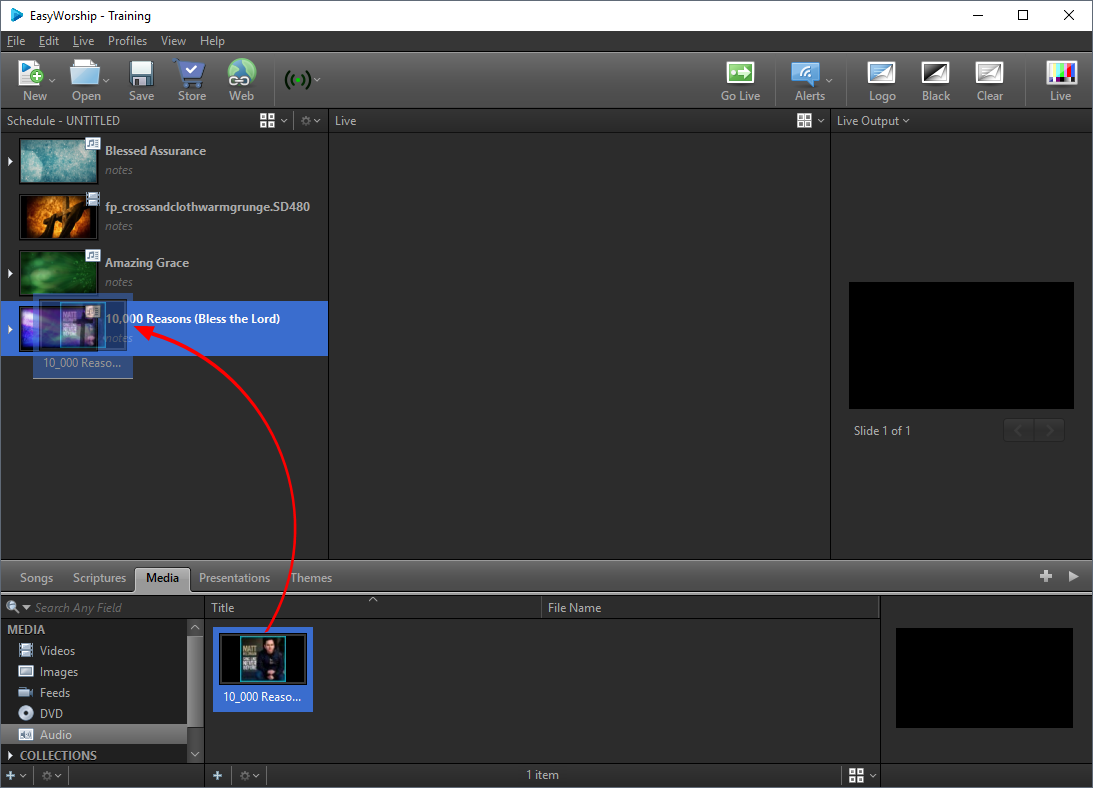
You can also assign a background or audio to an individual slide within a group of slides.
- Click the arrow next to the song slide in the Schedule Area.The slides will expand so that you can see each individual slide for the song.
- Drag-and-drop a media item onto an individual slide.
NOTE Dragging a media item onto the master slide of a song will apply the background to all slides, even slides that already have a background assigned to them.
SEE Customize Song Slides
NOTE You can right-click any theme in the Themes Area and click Set as Default. You can set a default theme for songs, scriptures, and presentations.This can also be done for the Alternate Output.
SEE Themes
Creating Announcement Loops
Announcement loops can be created in either EasyWorship or PowerPoint and loaded into the Presentations tab. The announcement loop will be added to the Schedule from the Presentations tab where all EasyWorship Presentations and added PowerPoint slideshows are stored.
SEE Announcement Loops for more information on how to create announcement loops.