Add a Song
The EasyWorship Song Editor allows you to add a new song to the songs Resource Area database by typing it, by importing it, or by copy and paste.
Manually type in a song
To open the song editor to add a new song:
- Click the Add icon
 button at the bottom of the song list, or right-click any song under the Songs tab in the Resource Area, and select New Song.
 - The Song Editor appears.
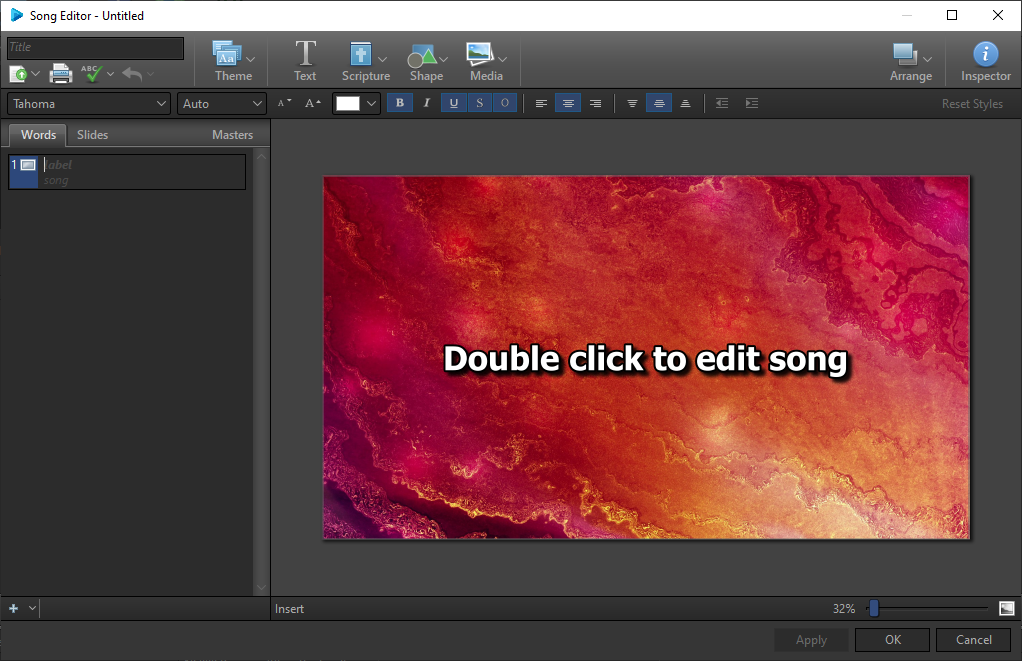
- Type the name of the song in the Title field.
- Under the Words tab, enter a label name (optional) and click in the song field and type in your song text.
- To add a new slide, click the Add Slide
 button at the bottom left corner of the Song Editor window.
 - Continue adding slides and typing in your song lyrcs.
- Edit your song to look the way you want.
SEE Edit A Song for more information on editing your song.
- When finished, click OK.
Import a song from document
- Click the Add button at the bottom of the song list, or right-click any song under the Songs tab in the Resource Area, and select New Song.
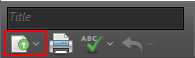
- Click the Import icon to the left of the printer icon at the top of the editor.
- The Windows Open dialog box appears. In the bottom right corner, select the type of file you want to import. Either .rtf or .txt.
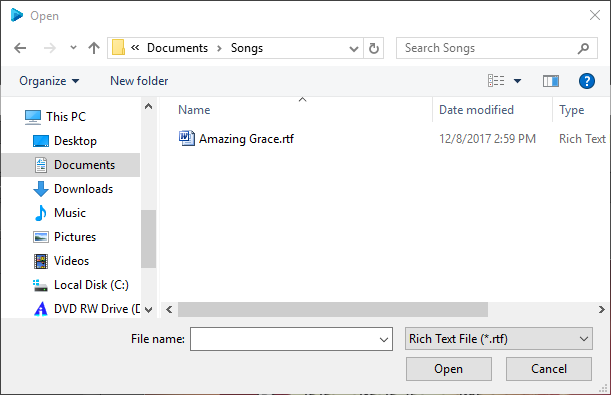
- Select the file you want to import and click OK. The song or text appears in the Song Editor where you can edit and format it.
SEE Edit A Song for more information on editing your song.
Import a song from SongSelect Lyric Service
SEE SongSelect for instructions on importing songs from SongSelect.
Add Song with Copy / Paste
- Click the Add button at the bottom of the song list, or right-click any song under the Songs tab in the Resource Area, and select New Song.
- Type a name for the song in the Title box.
- Type the label you want to use for the slide under the Words tab. (i.e., Verse 1, Chorus, Intro).
- Copy your text from another source (Word, Notepad, website).
- In the Song Editor window, right-click in the song field and select Paste without Formatting to insure no special formatting carries over from the source you copied from.
- When you're finished adding and editing your song, click OK.
Locate and Display a Song
- In the Resource Area, click the Songs tab.
- Type the name of the song in the search box
 for a Title search, or change to a Contextual search
  by clicking the icon and search by keyword (e.g., popular phrase in the lyrics).
 - If you are doing a Title Search , you can begin typing and EasyWorship will auto-complete the text with the best match alphabetically.
- After you locate the song, drag-and-drop it from the Resource Area to the Schedule Area.
- OR select the song in the database and click Go Live, or double-click the song to send it directly to the Live Output Area.
- Click each verse in the Live Area and follow your leader, OR use the UP and DOWN arrows on the keyboard or the arrow buttons in the Live Area
 to advance to the next slide.