About Profiles
Profiles consist of both User Settings and Application data. User Settings consist of settings like font size, color and transition settings, as well as information about the EasyWorship window size and location. Application Data consists of databases such as songs and backgrounds, along with videos, images, feeds, and DVD clips. Settings like the output monitor setting are global settings that will affect all users and are not part of Profile settings.
What is the benefit of using Profiles? With a little bit of up front effort, Profiles let you store databases in different locations and then associate multiple unique user settings to that application data. Stated more simply, if John runs EasyWorship for the adults and Jane runs EasyWorship for the youth group, they can both have access to the same resources (songs, backgrounds, videos, etc.), but have completely different user settings so EasyWorship looks, acts, and displays the way that fits their unique audience. Or, John and Jane can create completely separate databases for their resources.
NOTE The profile data can be stored on the local hard drive, on a server, or shared network folder. EasyWorship will create a Default profile in the following location when installed: C:\Users\Public\Public Documents\Softouch\EasyWorship.
Possible Profile Configurations
- Use the same set of application data as another profile but different user settings. (Example: John and Jane share the same resources [songs, backgrounds, videos], but have different user settings so that John's slides are appropriate for the adults and Jane's slides are appropriate for the youth.)
- Use a different set of application data with the same user settings as another profile. (Example: John and Jane have separate databases, so they don't mix resources [songs, backgrounds, videos] but they have identical user settings.)
- Use a different set of application data and a different set of user settings. (Example: John and Jane have separate databases, so they don't mix resources [songs, backgrounds, videos] and they also have different user settings.)
NOTE EasyWorship also allows for easy hot swapping between Profiles. This means that EasyWorship doesn't have to be closed when switching from one Profile to another.
Profiles Menu
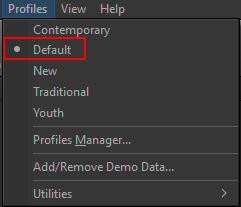
The Profiles menu has multiple options. At the top are the names of all available Profiles that have been created. "Default" is listed as the only available Profile until additional Profiles have been created. To change Profiles, select the desired profile.
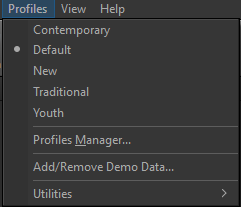
SEE Profiles Menu for more information about other options in this menu.
Locate Your Profile Data
You may eventually need to transfer your database from one computer to another, or copy videos or images into the Resources folder. To find the location of the data for your Profile, use the following steps:
- Click Profiles > Profiles Manager.
- Select the desired profile.
- Click the link next to Instance Location. This will open the Windows File Explorer window to the folder where your Resources and Database is located.
NOTE The Song database and Options for the profile will be stored in a folder called v6.1. Presentations, Audio, Videos and Images will be stored in the Resources folder.
SEE Backup Data if you would like to backup or transfer your database.
Change Profiles
EasyWorship allows you to change profiles easily, giving you the ability to use different databases and settings without closing the application.
- Click Profiles.
- Select the desired Profile.
- EasyWorship will load that profile. If you have an un-saved Schedule open, EasyWorship will ask you to save and close it before loading the selected profile.
Determining which profile is currently loaded is also easy. The current profile is the one with a black dot on it when you click the Profiles menu.