Scripture Backgrounds
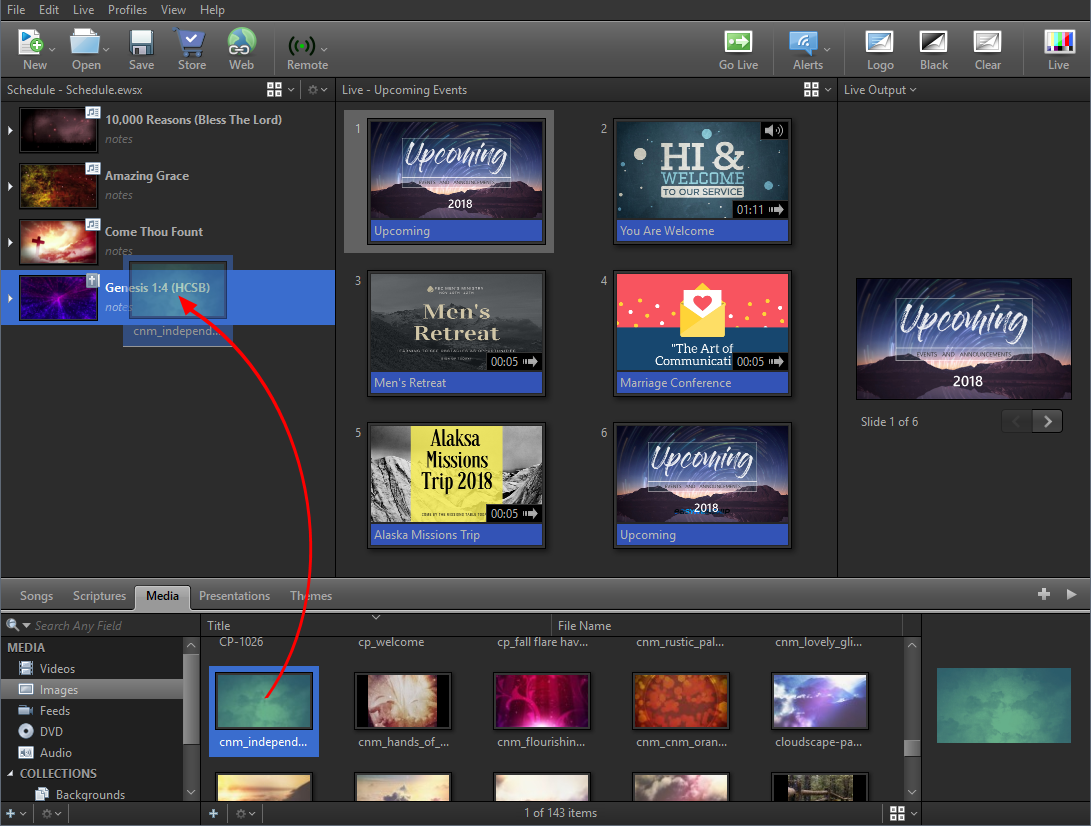
Drag and Drop
- Add a scripture to your schedule.
- Click the Media tab.
- Drag and drop the desired video or image onto the scripture in the schedule.
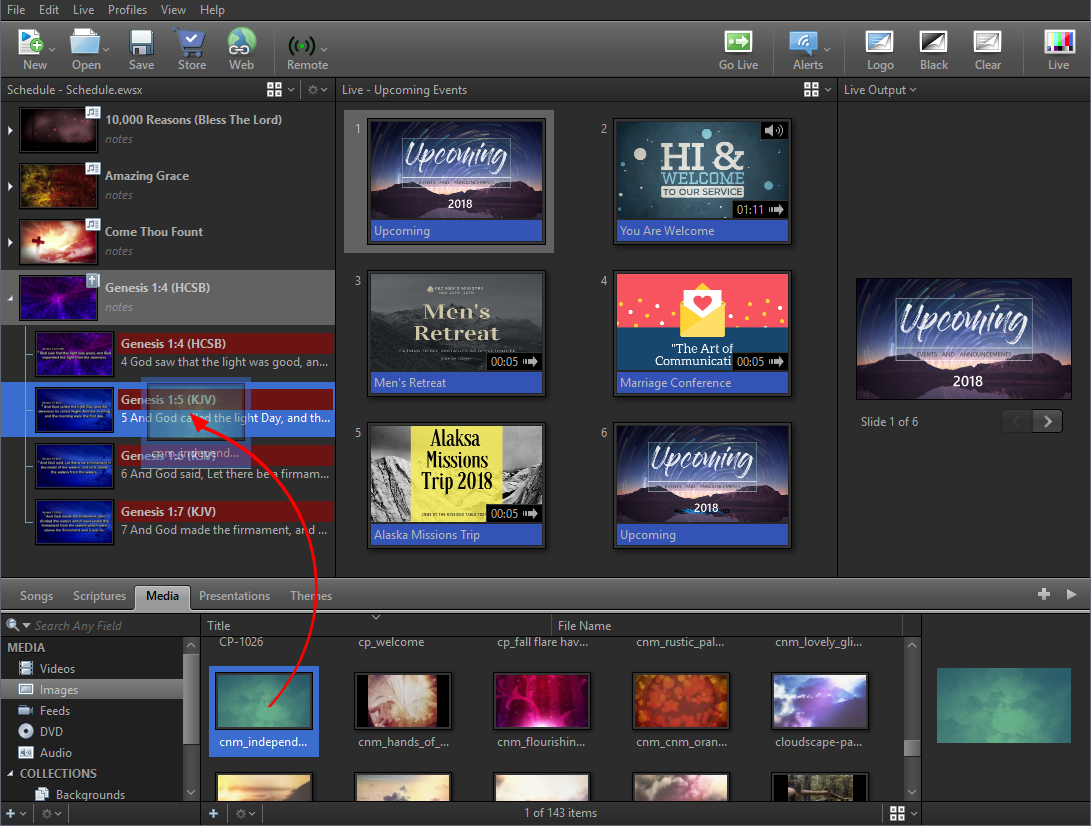
To set a background to a specific slide in a scripture,
- Add a scripture to your schedule.
- Click the Media tab.
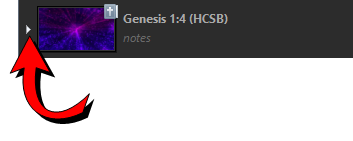
- Click the arrow on the left of the scripture in the schedule to expand it.
- Drag and drop the desired video or image onto the slide in the schedule.
IMPORTANT! Dragging and dropping an image or video to a Scripture in the schedule will not be applied as the background for Scriptures on Alternate Output if it's enabled and a default theme has been set for it.
Inspector
- Right click on a scripture in the database and select Edit Item....
- In the Editor, click Inspector
 in the top right corner.
 - Click Background.
- Under Fill Style, choose Media Fill.
SEE Inspector Backgrounds for more information about choosing a Color Fill or Gradient Fill.
- Select the video or image you want to use as the background.
- Click Apply to Theme.
NOTE If you only want to set that background for one specific slide, don't click Apply to Theme. Apply to Theme will set that background to all the slides in the scripture set.
NOTE You can also click on the Masters tab before step #2. If you set the background in the Masters tab, there is no Apply to Theme button. It will automatically apply to the theme since you're in the Masters tab.