Feeds Layout
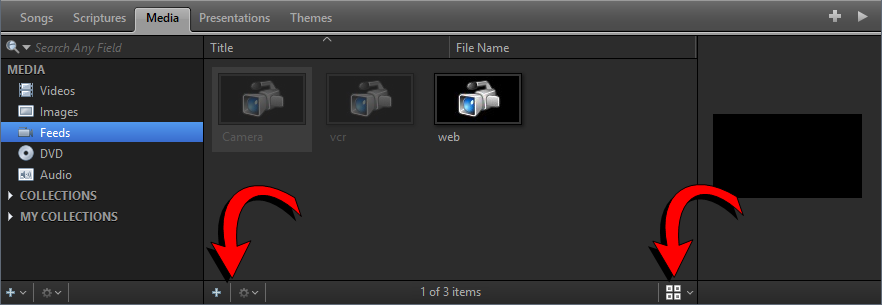
To start exploring the Feeds feature, click the Media tab in the Resource Area. Then, click the Feeds icon in the Media Library (see illustration below). There are three icons across the bottom of the Feeds library.
|
Add New |
Click this icon to open the Feeds Editor window and create a new Feed. |
|
Action |
Click this icon to add a new Feed, edit or delete a selected Feed, copy the selected Feed to Themes, customize the thumbnail view, customize the sort order, or refresh your Feed thumbnails. |
|
Thumbnail View |
Click this icon and use the slider to customize the thumbnail view in the Feeds library. |


Feeds Editor Overview
To access the Feeds Editor, right-click anywhere in the Feeds library section and select Add New Feed... from the pop-out menu, or click the Add New  icon.
icon.
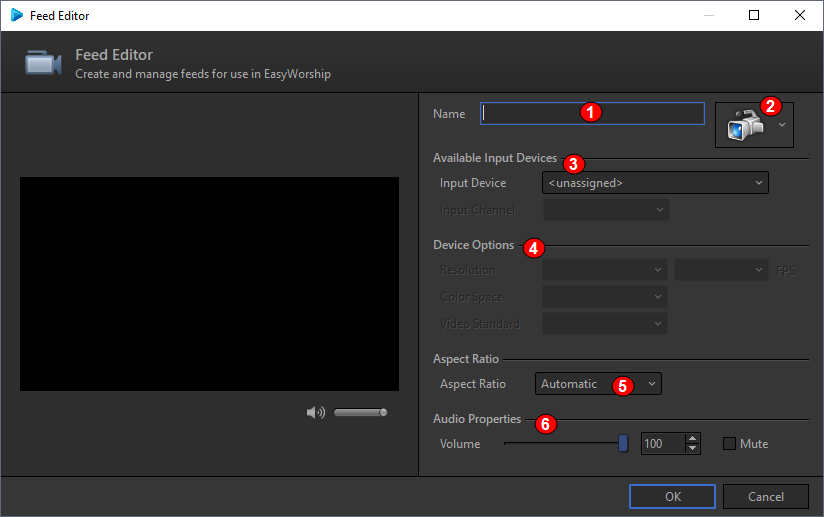
- Name: Type the name of the Feed in this field.
- Thumbnail: Click the drop-down arrow to select what type of Feed this is. The options are Camera, Mixer, DVD Player and Misc Player.
- Available Input Devices: Select the Input Device you want your Feed to come from. If your capture device has more than one input, use the Input Channel to select the input your Feed is coming through.
- Device Options: The device settings in EasyWorship have to match the settings for your capture card. Select the correct Resolution, Color Space and Video Standard to match the settings on the capture card.
- Aspect Ratio: Allows you to use the Automatic setting, maintain the aspect ratio, stretch or zoom the video.
- Audio Properties: Allows you to change the volume of the Feed when you go live with it. The volume slider allows you to set the volume of the Feed for playback to the audience. Mute allows you to mute the audio on the Feed if you don’t wish to use the audio portion.
NOTE Most users using a live Feed will run the audio through their sound system and not through the capture card. You will only need to adjust the Audio Properties if you run the audio through your capture card. This would be most common if you connect a DVD or Blu-Ray player.
Right-Click Features
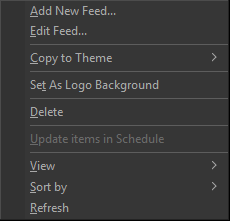
When right-clicking a thumbnail in the Feeds Resource Library, you have the following options.
|
Add New Feed |
This will open a blank feed in the Feed Editor. |
|
Edit Feed |
This will open the selected feed in the Feed Editor. |
|
Copy to Theme > |
Select Song Theme, Scripture Theme, or Presentation Theme to add the feed to the desired theme library. |
|
Set as Logo Background |
Sets the feed as the default background logo. Clicking the Logo button in the Toolbar will output the logo you selected to the screen. Clicking it again turns off the logo. |
|
Delete |
Deletes the feed from the Resource Area. It will prompt you to delete it completely from the / Resources / Feeds folder. |
|
View |
Allows you to change icon size for a custom thumbnail view. |
|
Sort by |
The same as in Windows. |
|
Refresh |
This will refresh the thumbnails for the selected item. |