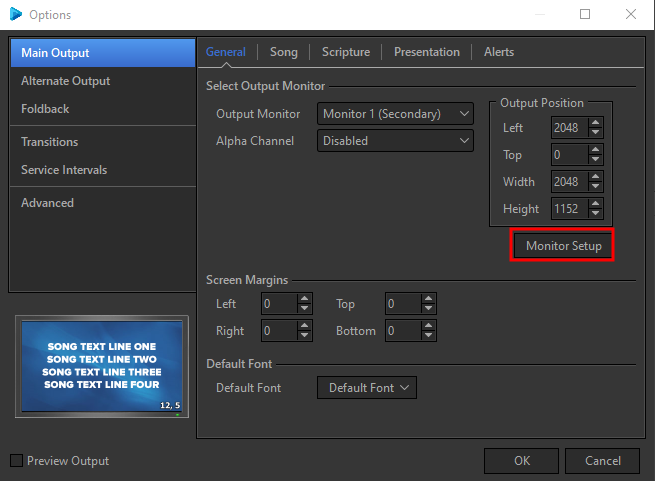
Click Edit > Options... to open the Options window.
Select the Main Output tab at the upper left.
In the General tab under Output Position, click Monitor Setup.
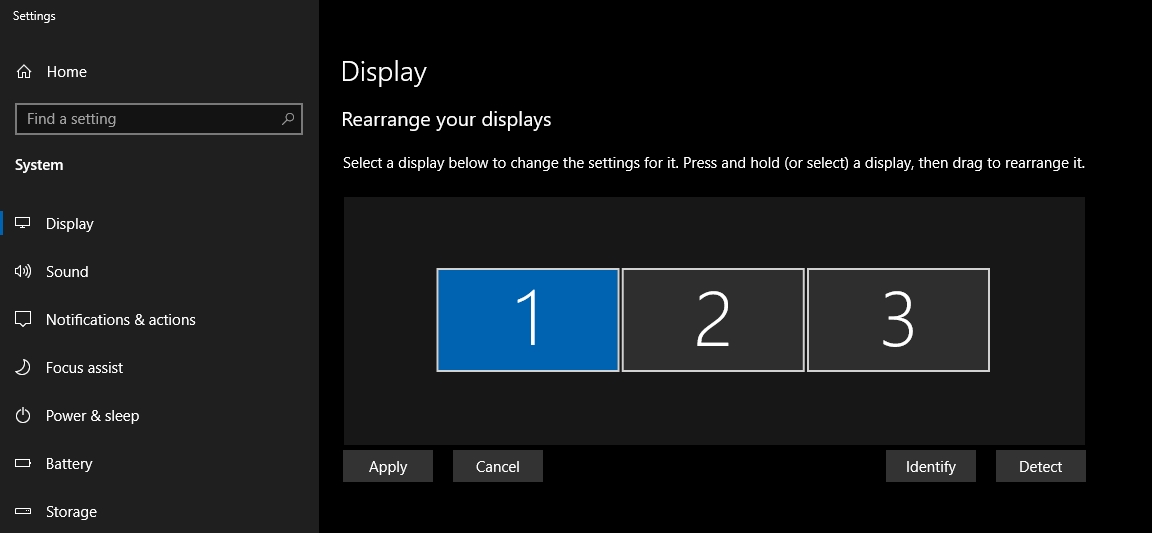
EasyWorship will open the Display Settings window.
If you see more than one monitor box, select the secondary display. If you see one monitor box with the numbers 1 and 2 in it, select it. (If display 1 and 2 boxes do not appear or you just see one monitor box without numbers in it, your computer does not have dual monitor capability, or you do not have a projector or monitor plugged into the secondary video output on the computer.)
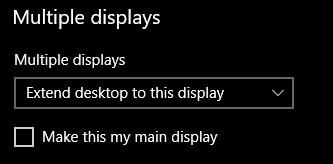
Under Multiple displays, select the option to extend the display from the drop-down list.
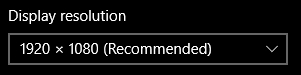
Set the Screen resolution. Normally, you will choose the Recommended setting.
Standard 4:3 - 800x600, 1024x768 or 1280x1024
Widescreen 16:9 - 852x480, 1280x720 or 1920x1080
Widescreen 16:10 - 1280x768, 1280x800 or 1440x900
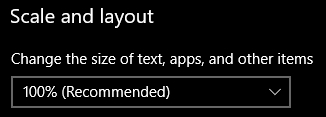
Verify the size of text, apps, and other items is set to 100%.
If prompted to keep the settings, click Keep Changes.