Creating and Using DVD Clips
Create a DVD Clip
- Insert a DVD into the DVD drive.
- Click the Media Tab in the Resource Area.
- Click the DVD icon in the Media Library on the left.
- Right-click anywhere in the DVD clip library section and select Add New DVD Clip from the pop-out menu, or click the Add New
 icon at the bottom of the DVD clip library section. The DVD Clip Editor window will appear.
 - Type a clip name in the Title field.
- Using your mouse, click the DVD chapter or title menu in the preview window and navigate to the desired chapter or segment.
- As the selected DVD clip plays, click Mark In to select the beginning of your clip.
- Click Mark Out to select the end of the clip.
- Scroll the clip to find the frame you wish to use for a thumbnail and click Set Thumbnail. Click OK.
- The clip and thumbnail will appear in the DVD clip database.
NOTE To play an entire chapter or segment, click Mark Entire Segment. For Integrity iWorship DVDs, and others like it, you can click Mark Entire Segment when a worship track starts playing. EasyWorship will set the Mark In and Mark Out points at the beginning and end of the song for you.
WARNING! If the wrong region or no region is set for the DVD drive in your computer, you will be able to create clips, but will NOT be able to play them back after removing and reinserting the DVD into the drive. To learn how to set the region for your computer's DVD drive.
SEE Setting DVD Region
Using a DVD Clip in the Schedule
- Select a DVD clip in the from the DVD section of the Media tab.
- Drag-and-drop the clip into the Schedule.
- When it is time for the DVD clip to be played in the service, click Go Live.
NOTE To go live with a DVD clip directly from the database, double-click the clip. DVD clips can be transferred via the schedule to another computer running the same version of Windows and EasyWorship, but the DVD has to be in the drive for the clip to play.
Edit a DVD Clip
- Right-click a DVD clip in the DVD section of the Media tab.
- Select Edit from the pop out menu.
- The DVD Clip Editor window will appear. Make the desired changes.
- Click OK to apply the changes.
Delete a DVD Clip
- Right-click a DVD clip in the DVD section of the Media tab.
- Select Delete.
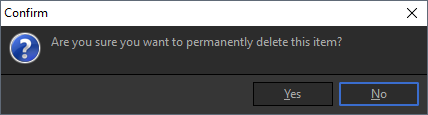
- Click Yes on the prompt that appears to verify that you want to delete the clip.