Alternate Transitions
To access the Options menu in EasyWorship, click Edit > Options.... In the bottom left corner of the Options window, there is a check-box next to Preview Output. Use this option to view changes on the output screen as you make them.
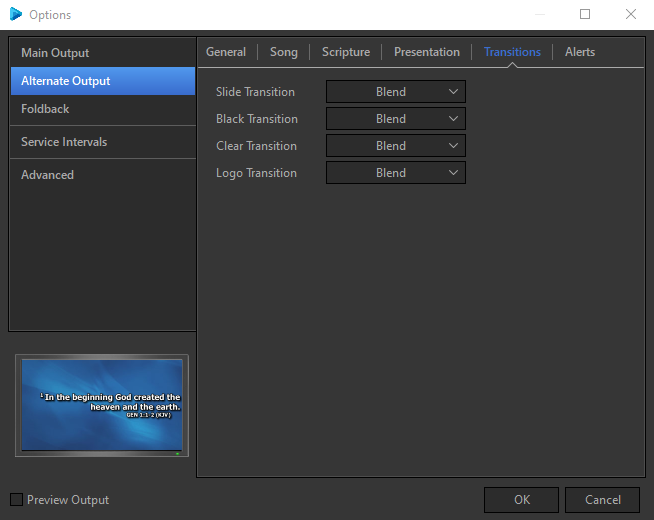
Transition options allow you to determine the default styles for slide to slide transitions, as well as Black, Clear, and Logo transitions (Black, Clear, and Logo buttons are on the top-right side of EasyWorship's main toolbar).
Transition Options
|
Slide Transition |
The type of transition to use between schedule items, and between items in a song, scripture, or presentation. |
|
Black Transition |
The type of transition to use between black and un-black displays. |
|
Clear Transition |
The type of transition to use between clear and un-clear displays. |
|
Logo Transition |
The type of transition to use between logo and un-logo displays. |
The following applies to all four fields:
|
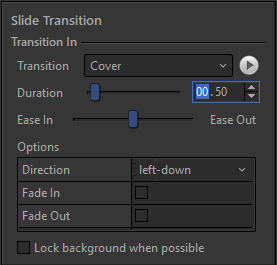
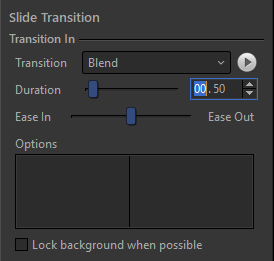
Transition |
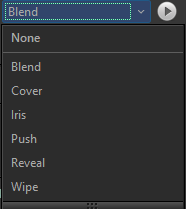
Use the drop-down list to select the desired transition.
NOTE Press the play |
|
Duration |
Set how long the transition should be. (Default setting is 00.50 which is 1/2 a second.) |
|
Ease In / Ease Out |
Use the slider to set the Ease In / Out. Ease In will cause the transition to start out slowly and then quickly speed up at the end. Ease Out will cause the transition to start out quickly and then slow down at the end. |
|
Options |
Based on the Transition chosen, various options will appear.
|
|
Lock background when possible |
If you transition from one slide to another with the same background and have this box checked it will only transition the foreground elements, like the text box, and leave the background static. If you uncheck this box, the background will transition with all foreground elements. |