Alternate Output Message Alerts
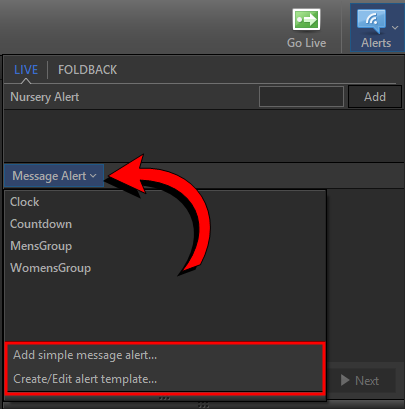
To create a message alert on the Alternate Output, click Alerts  on the main toolbar and then click the Message Alert drop-down. You have the option to Add simple message alert or Create/Edit alert template....
You can enable/disable and modify the appearance of the alert by clicking Edit > Options > Alternate Output... and selecting the Alerts tab.
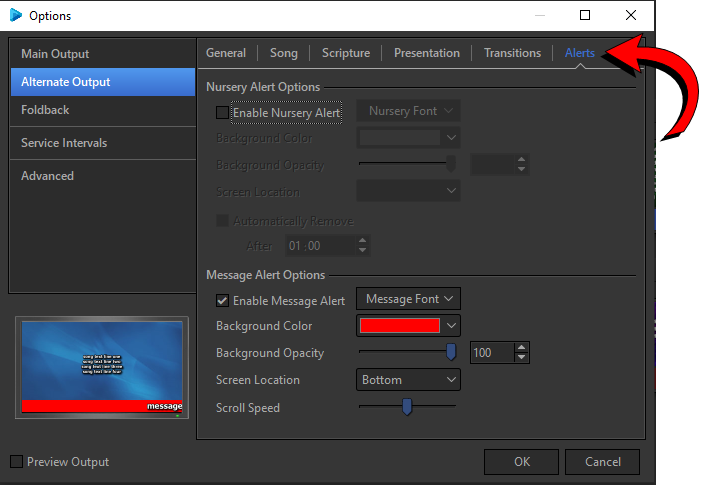
SEE Alerts in Options
New Simple Message Alert
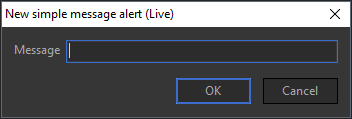
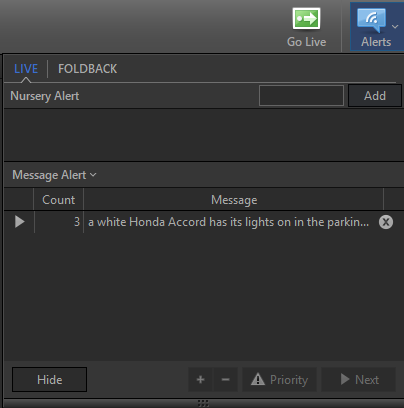
If you choose to add a simple message alert, the New simple message alert window will appear. Enter the desired message and click OK. The message will immediately display to your live output and be listed in the Message Alert area of the Alerts window.
- The scrolling message alert will automatically display 3 times. You can add or subtract the number of times the message displays by clicking the plus or minus
 button.
 - To immediately stop the alert from displaying, click Hide.
- If there are multiple message alerts, you can select one and click Priority to display only that alert. You can click Next to advance to the next alert in the list.
IMPORTANT! Message alerts will display on all outputs where they are enabled in the Options.
Create / Edit Alert Template...
In addition to creating a simple message alert, you can create an alert template for alerts you will use over and over again. Click Alerts, then Message Alerts > Create/Edit alert template... The Live Alert Editor appears.
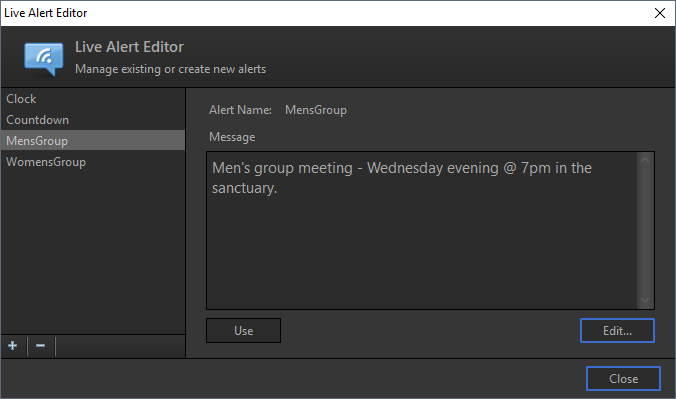
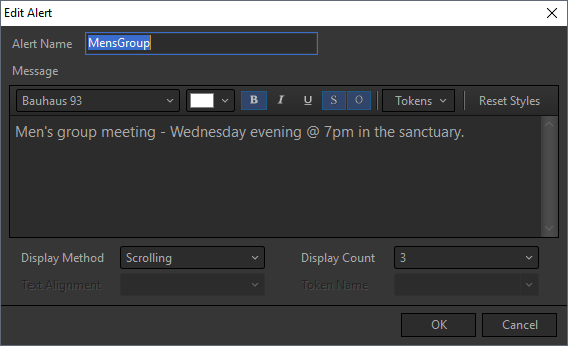
To add a new alert template, click the Add  icon in the left pane. The Edit Alert window will appear.
|
Alert Name |
Enter a name for the new alert. |
|
Message |
Enter the message alert. Use the formatting options to customize the appearance. From left to right, the options are Font, Text Color, Bold, Italic, Underline, Shadow, and Outline. |
|
Tokens |
Click the drop-down to add or insert a token. Place your cursor where you want the token and click the Tokens drop-down and select the token you want. Or, click the Tokens drop-down and drag and drop the token you want into the message. SEE Tokens |
|
Reset Styles |
Resets the text options to the default. |
|
Display Method |
There are three choices for how the text displays on the screen Static - The alert is stationary on the screen. Scrolling - The alert will scroll across the screen. Scroll when needed - The alert will scroll only if the text is so long that it doesn't fit the screen. |
|
Text Alignment |
When you choose a static display, select the desired alignment of the text. |
|
Display Count |
Choose the number of times the alert should display from 1-9. You can also choose to display the alert until you manually remove it, or until a specific token expires. If you choose to display the alert until a token expires, the Token Name field will become active. |
|
Token Name |
Select the token whose expiration will correspond to the display count for the alert. |