Adding and Setting Default Backgrounds
Adding Backgrounds to EasyWorship
Images and Videos are used for backgrounds, so adding backgrounds is just adding the images and videos you want to use to your Media.
SEE Adding Images and Adding Videos
Setting a Default Background
You will set the default background using Themes.
When you set a default song theme, any new song or existing songs that are using the default settings will use this default theme. If you have manually set a song in the database to use a different background, it will not use your default theme.
NOTE When you set an Alternate out default song theme, it will display on all songs on the Alternate output.
When you set a default scripture theme, any scripture you go live to will have your default background on it.
NOTE When you set an Alternate out default scripture theme, it will display on all scriptures on the Alternate output.
When you set a default presentation theme, any new presentation or existing presentations that are using the default settings will use this default theme.
NOTE When you set an Alternate out default presentation theme, it will display on all presentations on the Alternate output.
If you manually edited a song in the database to use a specific theme, it will not use your default theme.
Follow these steps to create a theme using your media.
- Go to the Media tab.
- Right click on the video or image you want to use as a theme.
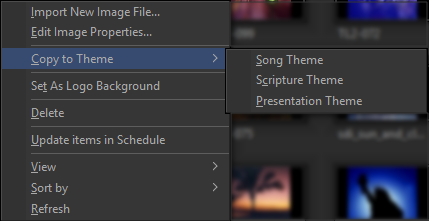
- On the right click menu, select Copy to Theme and then select either Song, Scripture or Presentation Theme.
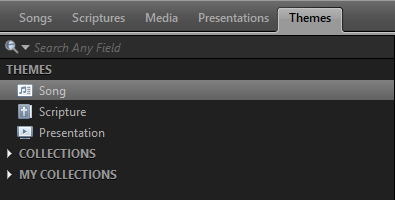
- Go to the Themes tab and select the respective library where you copied the theme. (Song, Scripture, Presentation)
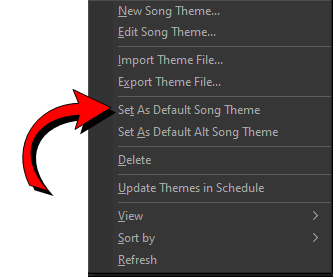
- Right click the theme you just created.On the right click menu, select Set as Default (Song, Scripture, Presentation) Theme.
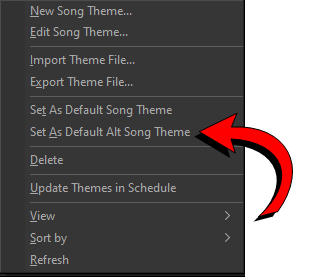
- To set your default Alternate Output theme, right-click the theme you want and select Set as Default Alt (Song, Scripture, Presentation) Theme.
To set your default Alternate Output theme, right-click the theme you want and select Set as Default Alt (Song, Scripture, Presentation) Theme.
SEE Themes