Adding Scripture to the Schedule
Adding a Single Verse
- Click the Scriptures tab in the Resource Area.

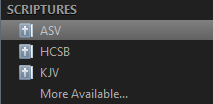
- Select a version of the Bible from the Resource Library on the left.
- To search the Scriptures by reference, click the icon in the Search field above the bible list. When it looks like a line list
 , it's set to search by reference.
 - Type your reference in the search box above the Resource Area.

- Drag-and-drop the selected scripture to the Schedule Area.
- To search the Scriptures by keyword, click the icon in the Search field above the Resource Area. When it looks like a magnifying glass
 , it is set to contextual search (i.e., keyword).
 - Type in any word or phrase to find what you’re looking for. (You can type multiple words to search, but if you want a phrase, it has to be in quotes.)
- Drag-and-drop or double-click the selected scripture to add it to the Schedule.
NOTE To add the scripture to the schedule by double clicking on it, the Live button in the top right corner of the main toolbar has to be turned off. If you double click the scripture with the Live button on, EasyWorship will send it live.
Adding Multiple Consecutive Verses
You may want to add consecutive verses to the schedule at one time, such as John 1:1-15.
- Under the Scriptures Tab in the Resource Area, select the version of the Bible you would like to use from the Resource Library on the left.
- To search the Scriptures by keyword, click the Search icon above the bible list. When it looks like a line list , it's set to search by reference.
- Type your scripture range in the Search field (e.g., John 1:1-15). The scriptures are automatically highlighted below in the Resource List.
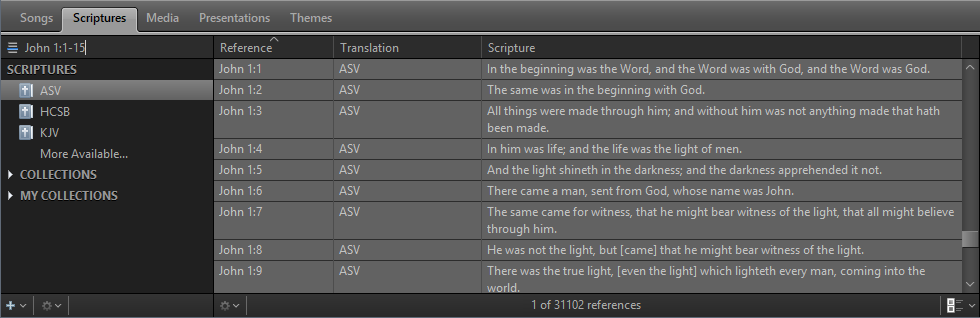
- Drag-and-drop the selected block of verses to the Schedule Area.
- You may also type a single scripture in the Search field (e.g., John 1:1). This search will return an ordered list of verses. You can then click the first verse, hold down the Shift key on the keyboard, click the last verse in the range of verses you want to include, then drag-and-drop the selected block of verses to the Schedule Area.
- By default, EasyWorship will re flow the text to a new slide when the maximum text area is filled. These settings can be changed in the Options menu.
SEE Live Scripture Options on how to change those settings.
Adding Multiple Non-Consecutive Verses
You may want to use multiple non-consecutive scriptures such as Genesis 1:1, 5, 7 and Matthew 7:7-9.
- Under the Scriptures Tab in the Resource Area, select the version of the Bible you would like to use from the Resource Library on the left.
- Search for and click your desired scripture (e.g., Genesis 1:1), then hold down the Ctrl key on the keyboard and click each verse you want to display.
- Drag-and-drop the selected verses to the Schedule Area.
- EasyWorship will separate each verse into its own slide.